The simulator PubSub tab
The PubSub tab of the OPC UA simulator GUI publishes and receives UADP messages over UDP or through an MQTT broker. This page covers MQTT only; for UDP, see the OPC UA guides.
Start the GUI
Section titled “Start the GUI”Run the program for your operating system from the simulator package:
| Operating system | Program |
|---|---|
| macOS | PDComm OPC UA Simulator.app in the package |
| Linux | bin/pdcomm-opcua-simulator |
| Windows | bin\pdcomm-opcua-simulator.exe |
The window title is PDComm OPC UA Simulator, and PubSub is the seventh tab.
The screen
Section titled “The screen”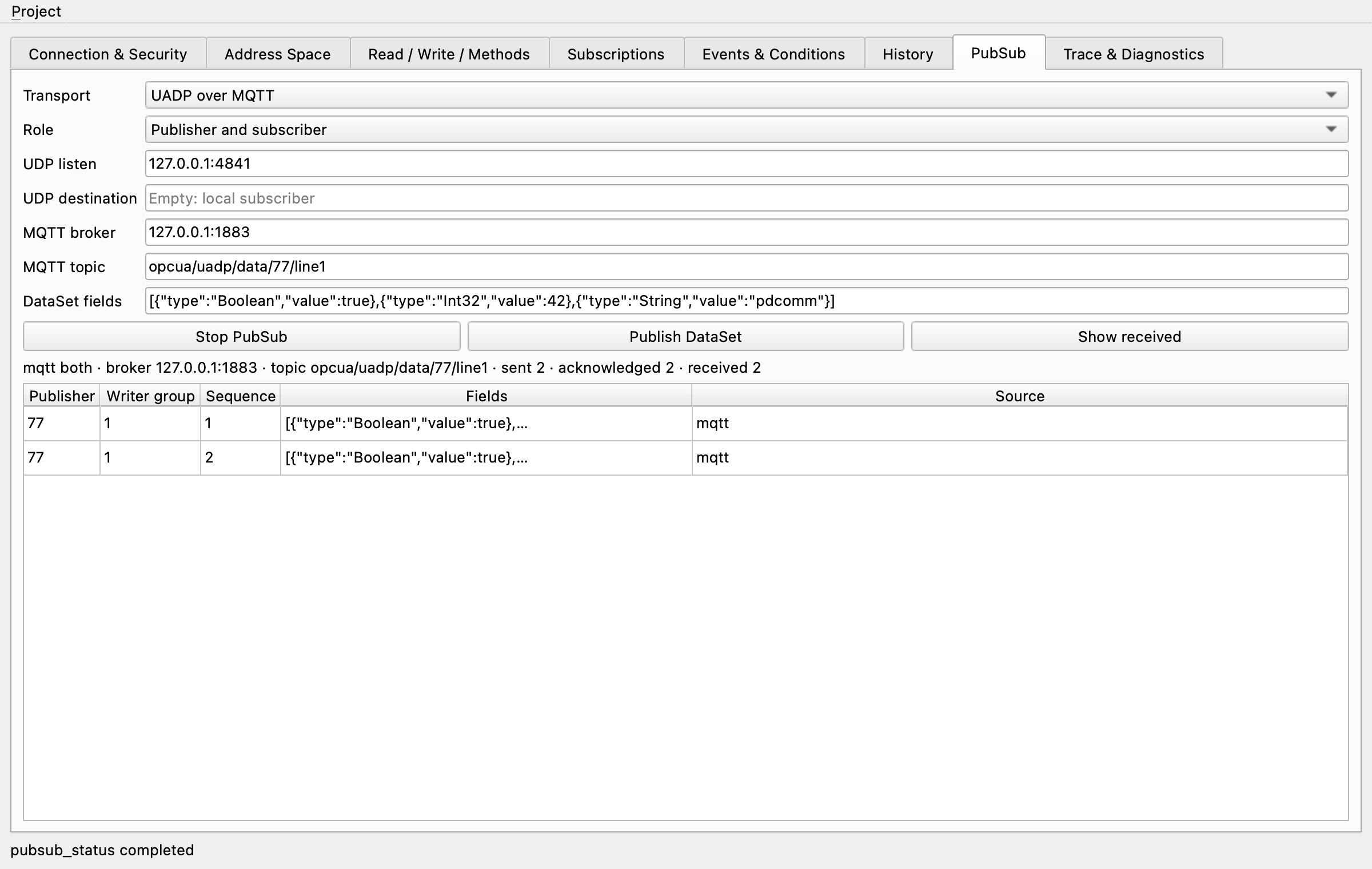
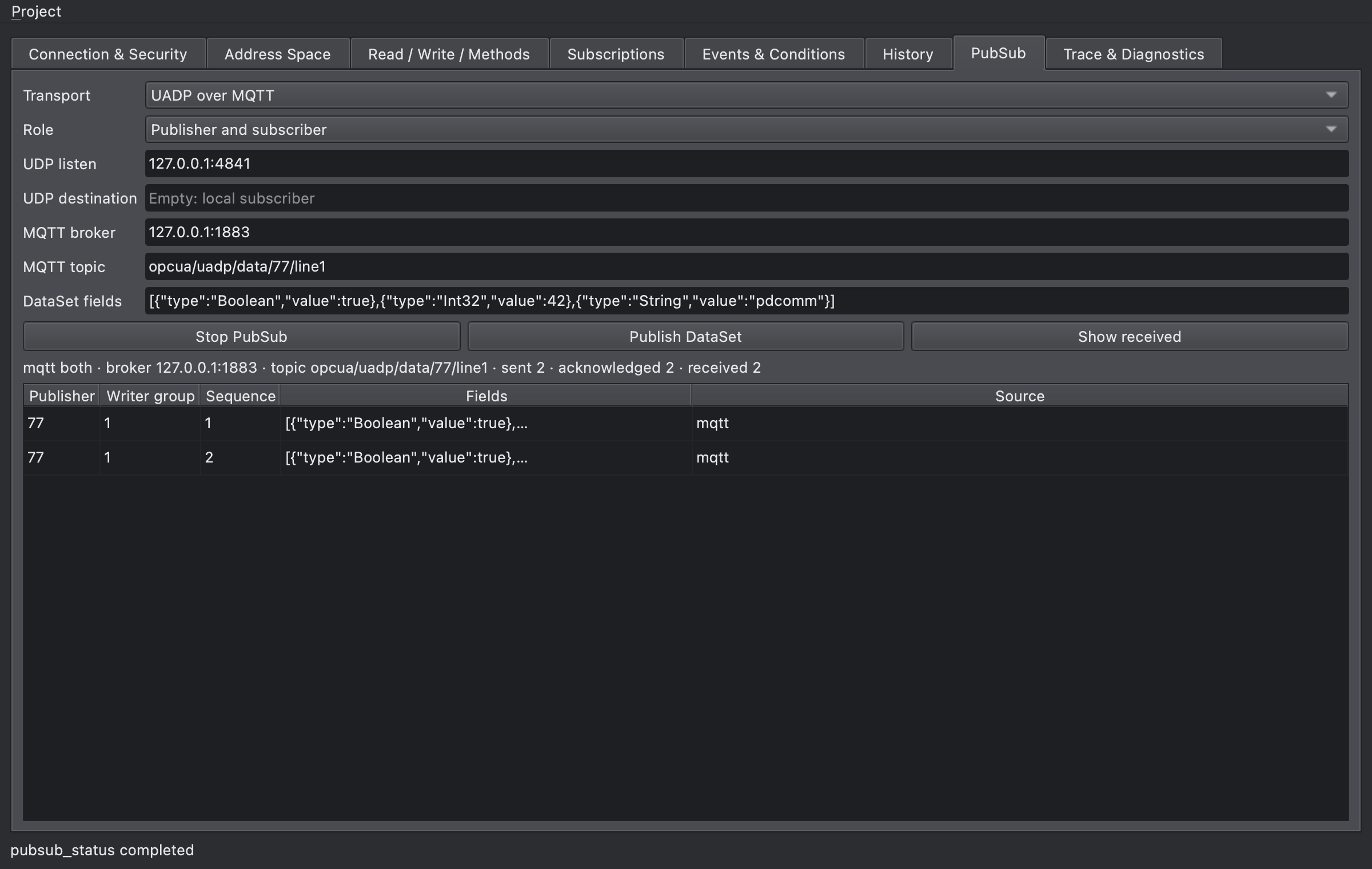
The picture shows Role set to Publisher and subscriber, after clicking Publish DataSet twice and then Show received.
Settings
Section titled “Settings”| Field | Meaning with MQTT | Default |
|---|---|---|
| Transport | Select UADP over MQTT. UADP over UDP is the UDP transport. | UADP over UDP |
| Role | Publisher and subscriber does both, Publisher only publishes, Subscriber only subscribes. | Publisher and subscriber |
| UDP listen, UDP destination | UDP only; MQTT ignores them. | |
| MQTT broker | The broker’s IP address:port. Host names aren’t accepted. |
127.0.0.1:1883 |
| MQTT topic | The one topic to publish to and subscribe to. Wildcards + and # aren’t allowed, and the length is 1 to 256 bytes. |
pdcomm/opcua/simulator |
| DataSet fields | A JSON array of the fields that Publish DataSet sends, each with a type and a value; 1 to 64 fields. |
Three fields: Boolean, Int32, String |
The type of a field can be Boolean, SByte, Byte, Int16, UInt16, Int32, UInt32, Int64, UInt64, Float, Double, String, DateTime, ByteString (a hex string), NodeId or LocalizedText.
The broker connect timeout follows Timeout (ms) in the Client session area of the Connection & Security tab.
Buttons
Section titled “Buttons”| Button | What it does |
|---|---|
| Start PubSub | Applies the current settings and connects to the broker. A subscribing role also waits for the SUBACK. While PubSub runs, the button reads Stop PubSub. |
| Stop PubSub | Sends DISCONNECT and closes the connection. |
| Publish DataSet | Builds one UADP NetworkMessage from DataSet fields and publishes it at QoS 1. The first publication with the default fields shows Published sequence 1 (51 bytes) in the status line. |
| Show received | Adds the received messages to the table and refreshes the status line. Nothing refreshes on its own, so click it whenever you want an update. |
You can’t change the PubSub settings while PubSub runs. Click Stop PubSub first, then start again.
Status line
Section titled “Status line”The line under the buttons shows the PubSub status:
mqtt both · broker 127.0.0.1:1883 · topic opcua/uadp/data/77/line1 · sent 2 · acknowledged 2 · received 2| Value | Meaning |
|---|---|
sent |
Messages published |
acknowledged |
Publications the broker confirmed with a successful PUBACK |
received |
Messages accepted by the subscriber |
rejected |
Messages received but rejected; shown only when it’s 1 or more |
last error |
The last error; shown only when there is one |
When the broker connection drops and PubSub stops, the line starts with Stopped ·, and the button goes back to Start PubSub:
Stopped · mqtt both · broker 127.0.0.1:1883 · topic opcua/uadp/data/77/line1 · sent 2 · acknowledged 2 · received 2 · last error: MQTT: MQTT transport closedClick Start PubSub to connect again with the same settings.
Received messages table
Section titled “Received messages table”| Column | Meaning |
|---|---|
| Publisher | The PublisherId of the NetworkMessage |
| Writer group | The WriterGroupId |
| Sequence | The DataSetMessage sequence number. If QoS 1 delivers a message twice, the number repeats. |
| Fields | The field values as a JSON array |
| Source | mqtt for messages received through MQTT |
The table keeps the latest 1,000 rows. Until you click Show received, the simulator holds at most 256 received messages and drops the oldest ones first.
Errors
Section titled “Errors”When starting or publishing fails, the status bar at the bottom of the window shows <action> failed: <error> in red.
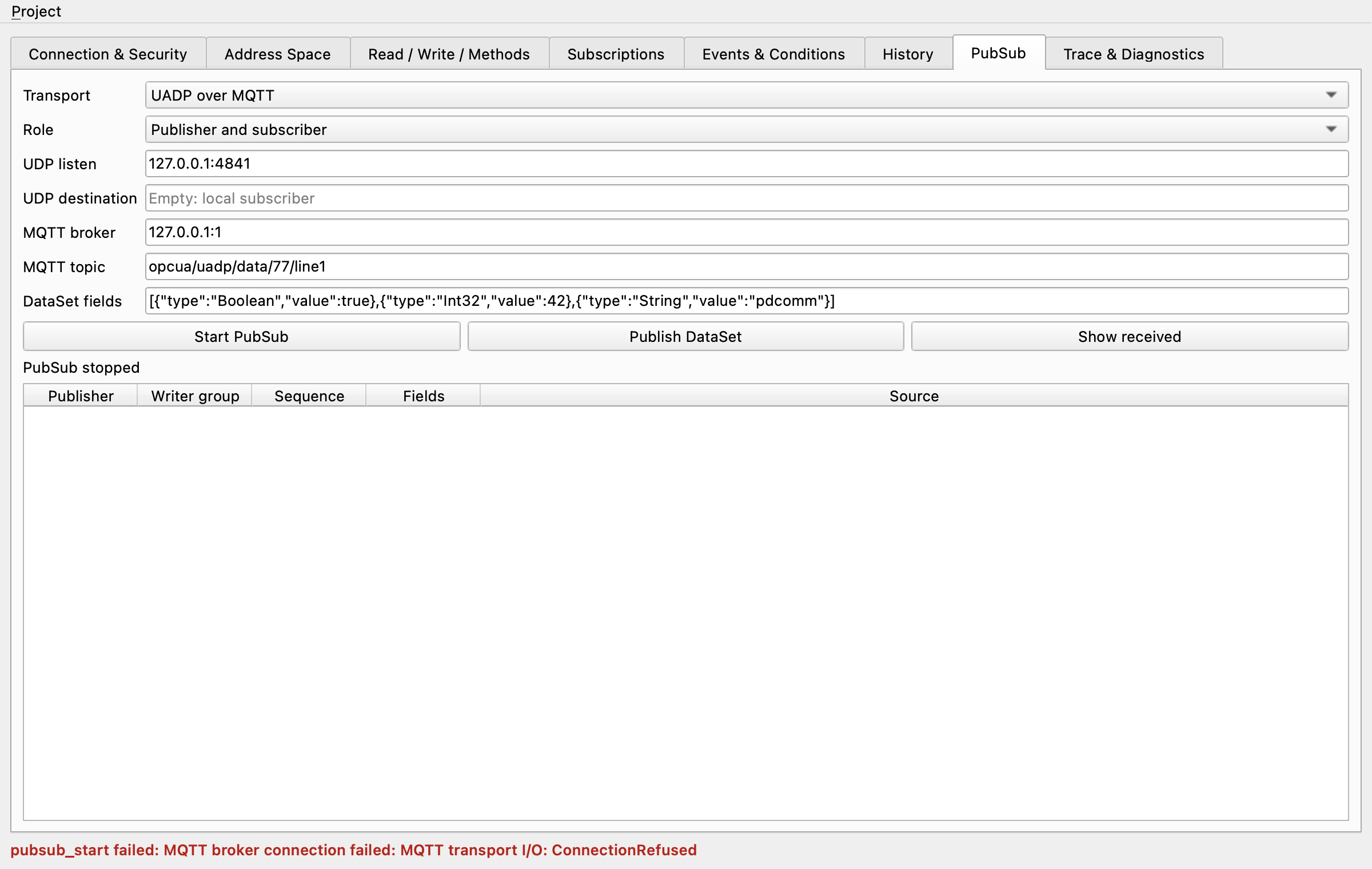
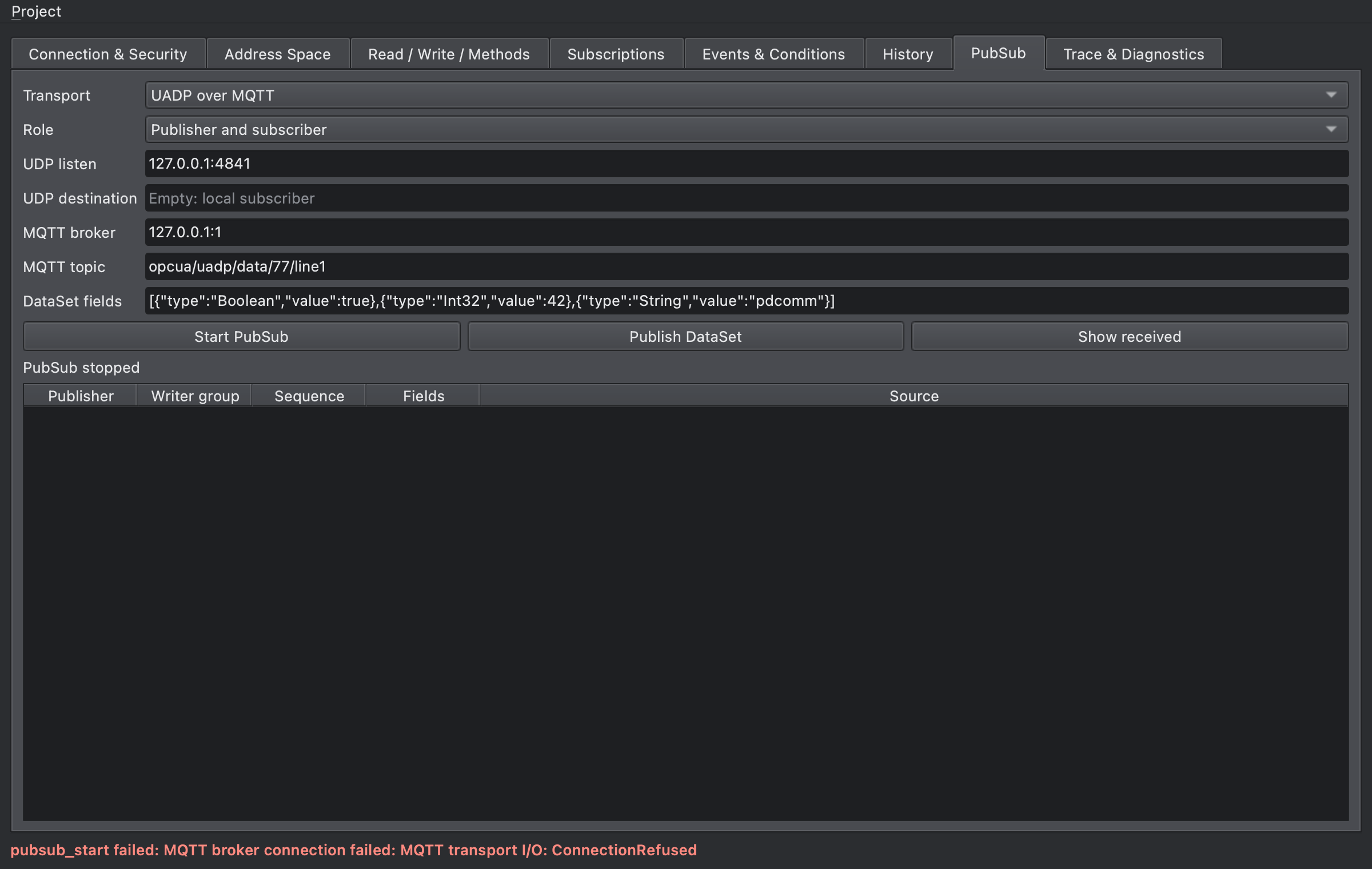
The picture shows the result of clicking Start PubSub with MQTT broker set to 127.0.0.1:1, where no broker listens.
Look up error messages in Connection problems and Delivery problems.
Save the settings
Section titled “Save the settings”Save… in the Project menu writes the whole configuration, PubSub settings included, to a JSON file, and Open… loads it again. You can open a project only while the server, the client and PubSub are all stopped.
Check the action log
Section titled “Check the action log”Click Refresh trace on the Trace & Diagnostics tab: actions such as pubsub_start and pubsub_publish appear with the Workspace value pubsub.
The Result, Elapsed (us) and Error columns show which actions failed and how long they took.
You turn on the diagnostic log file on the same tab; Verification tools has the details.