The simulator GUI
The PDComm Modbus Simulator is a Qt application for testing Modbus servers, clients and gateways on screen. It uses the same service commands as the SDK: each button sends one JSON command.
Start the simulator
Section titled “Start the simulator”| OS | How to start |
|---|---|
| macOS | Open PDComm Modbus Simulator.app at the top of the SDK, or run open "$MODBUS_SDK/PDComm Modbus Simulator.app" in a terminal. |
| Windows | bin\pdcomm-modbus-simulator.exe in the SDK |
| Linux | "$MODBUS_SDK/bin/pdcomm-modbus-simulator"; needs a desktop session. |
Keep the SDK folder together: the GUI uses the libraries in the same SDK’s lib/.
The status line at the bottom of the window shows the result of the last command:
| Status line | Meaning |
|---|---|
Completed: <command> |
The command succeeded, for example Completed: connect. |
<command> failed: <message> |
The command failed. The message is the SDK’s error string, for example connect failed: Io(ConnectionRefused, ...). |
Connecting... |
You clicked Connect and the result is pending. |
The GUI sends poll from a worker thread every 5 ms, so servers and gateways keep answering while the window is open. Client requests also run on the worker thread, so the window never freezes.
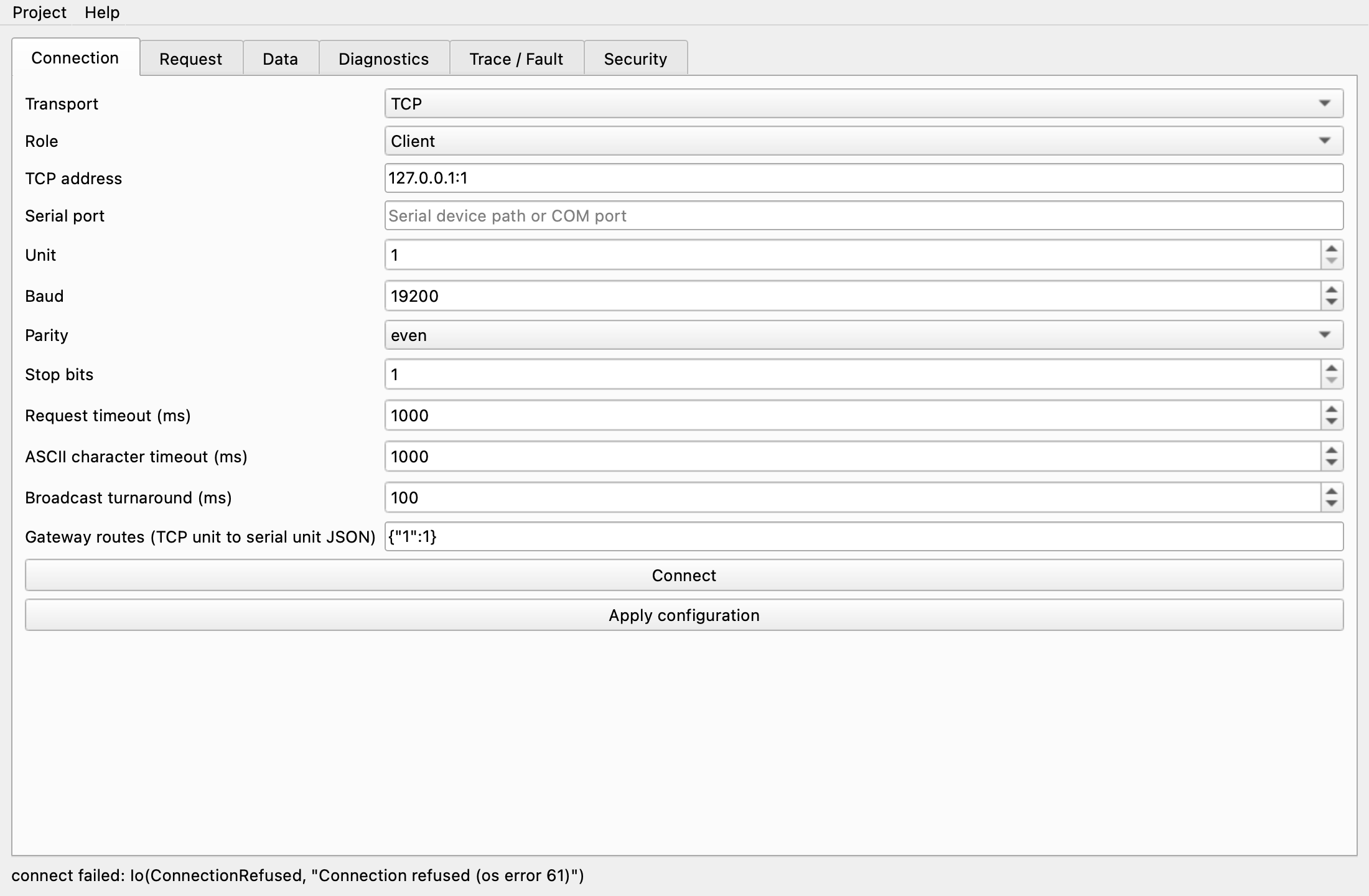
Connection
Section titled “Connection”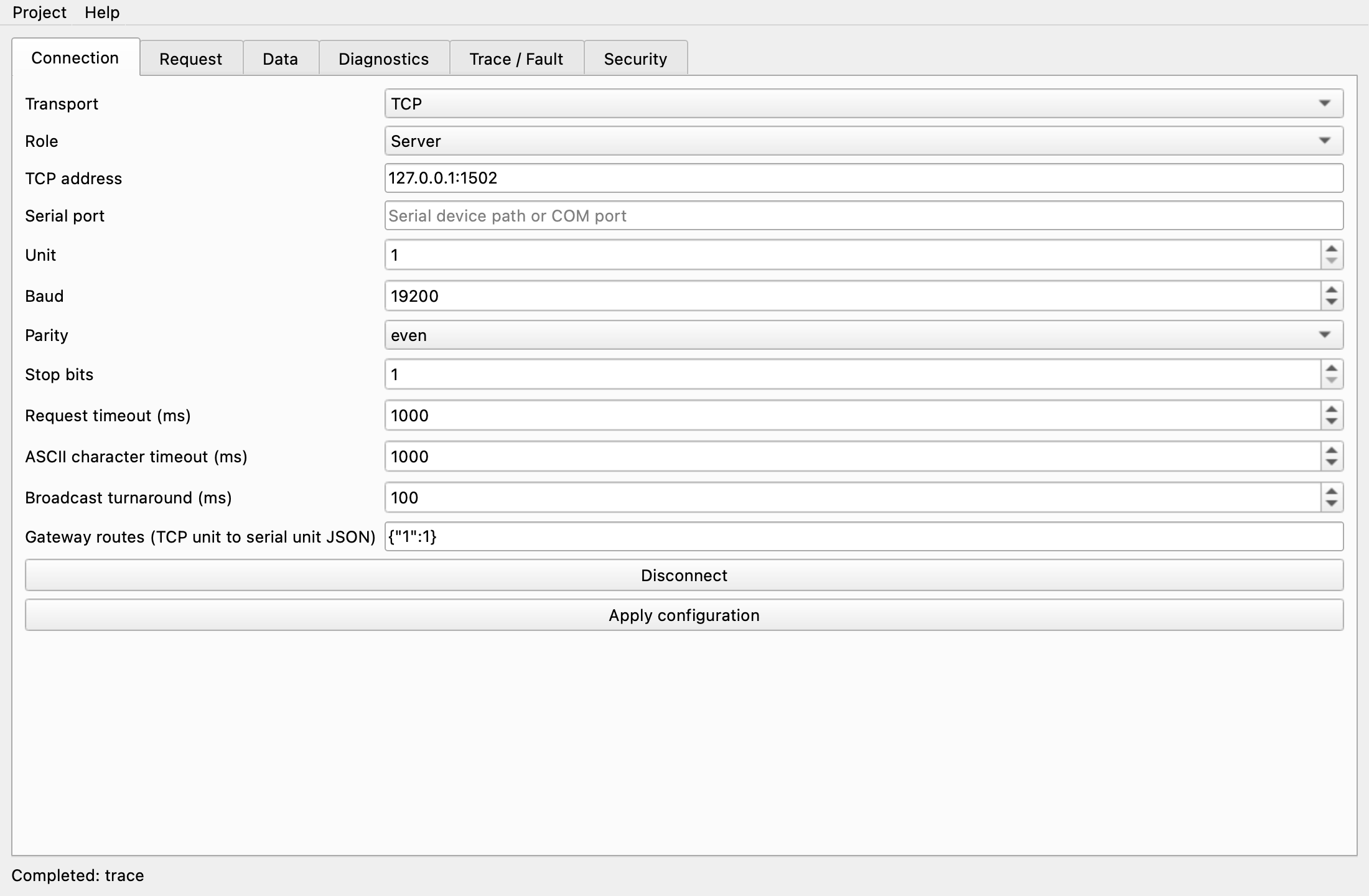
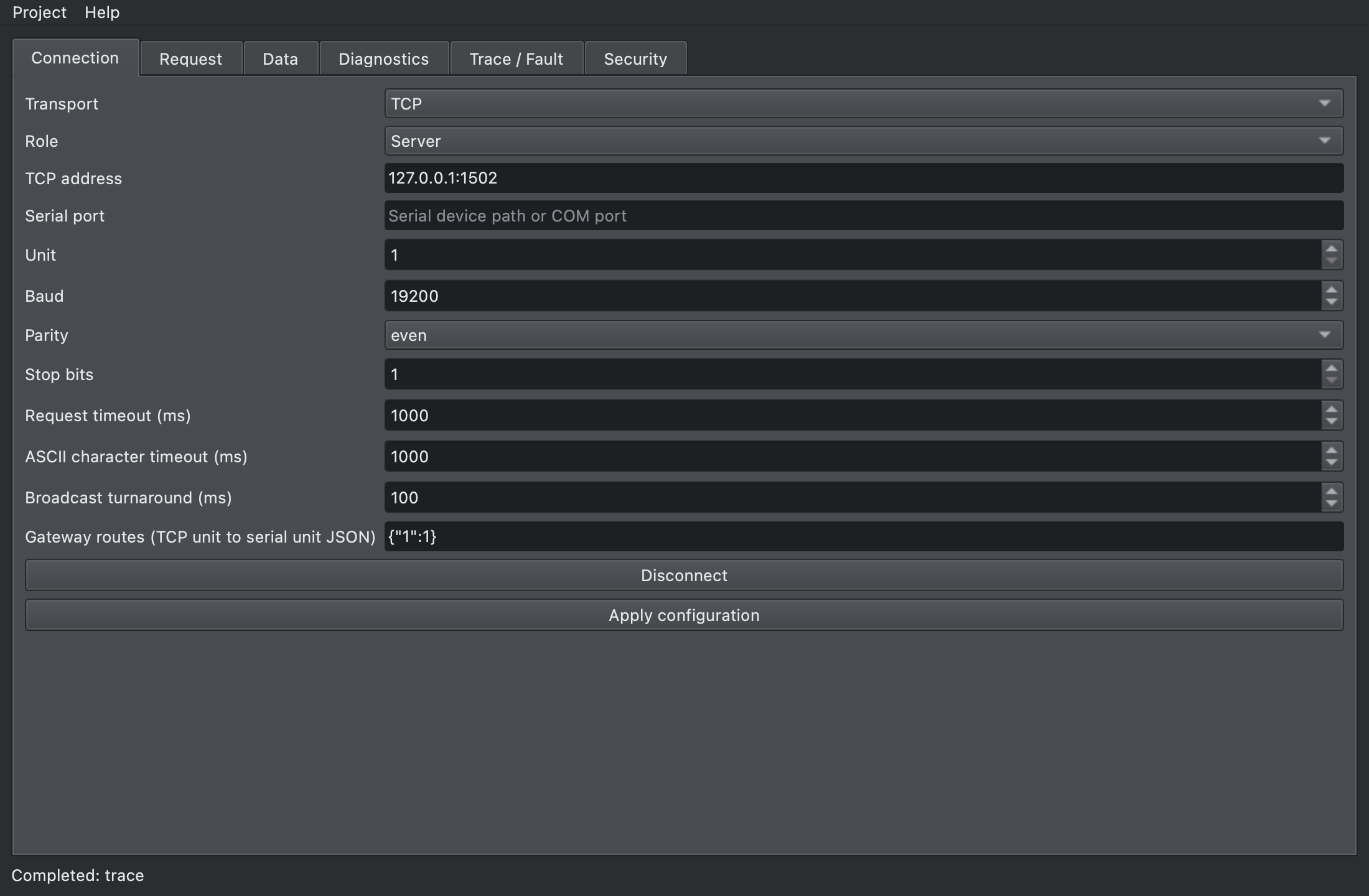
| Field | Configuration member | Description |
|---|---|---|
| Transport | transport |
TCP, RTU or ASCII. Only transports included in the SDK are listed. |
| Role | role |
Server, Client or Gateway. Gateway appears only in builds with both TCP and a serial transport. |
| TCP address | address |
IP:port: where a server listens, where a client connects, or a gateway’s TCP side. |
| Serial port | port |
Serial device path (/dev/cu.usbserial-..., COM3) |
| Unit | unit |
1–247 |
| Baud, Parity, Stop bits | baud, parity, stop_bits |
Serial settings. With Parity none, Stop bits must be 2. |
| Request timeout (ms) | timeout_ms |
Client requests and connects, and a gateway’s serial wait |
| ASCII character timeout (ms) | ascii_timeout_ms |
Longest gap between ASCII characters |
| Broadcast turnaround (ms) | turnaround_ms |
Wait after a broadcast |
| Gateway routes (TCP unit to serial unit JSON) | routes |
Gateway route table, such as {"1":7,"2":9} |
- Connect sends
configurewith the current values, thenconnect. On success the button turns into Disconnect. A server opened on port 0 updates TCP address to the actual address. - Apply configuration sends
configureonly. Use it to try Execute locally on the Request tab with a configuration such as RTU, without connecting. - You can’t change the configuration while connected; click Disconnect first. Apply configuration while connected reports
configure failed: Disconnect before changing configuration.
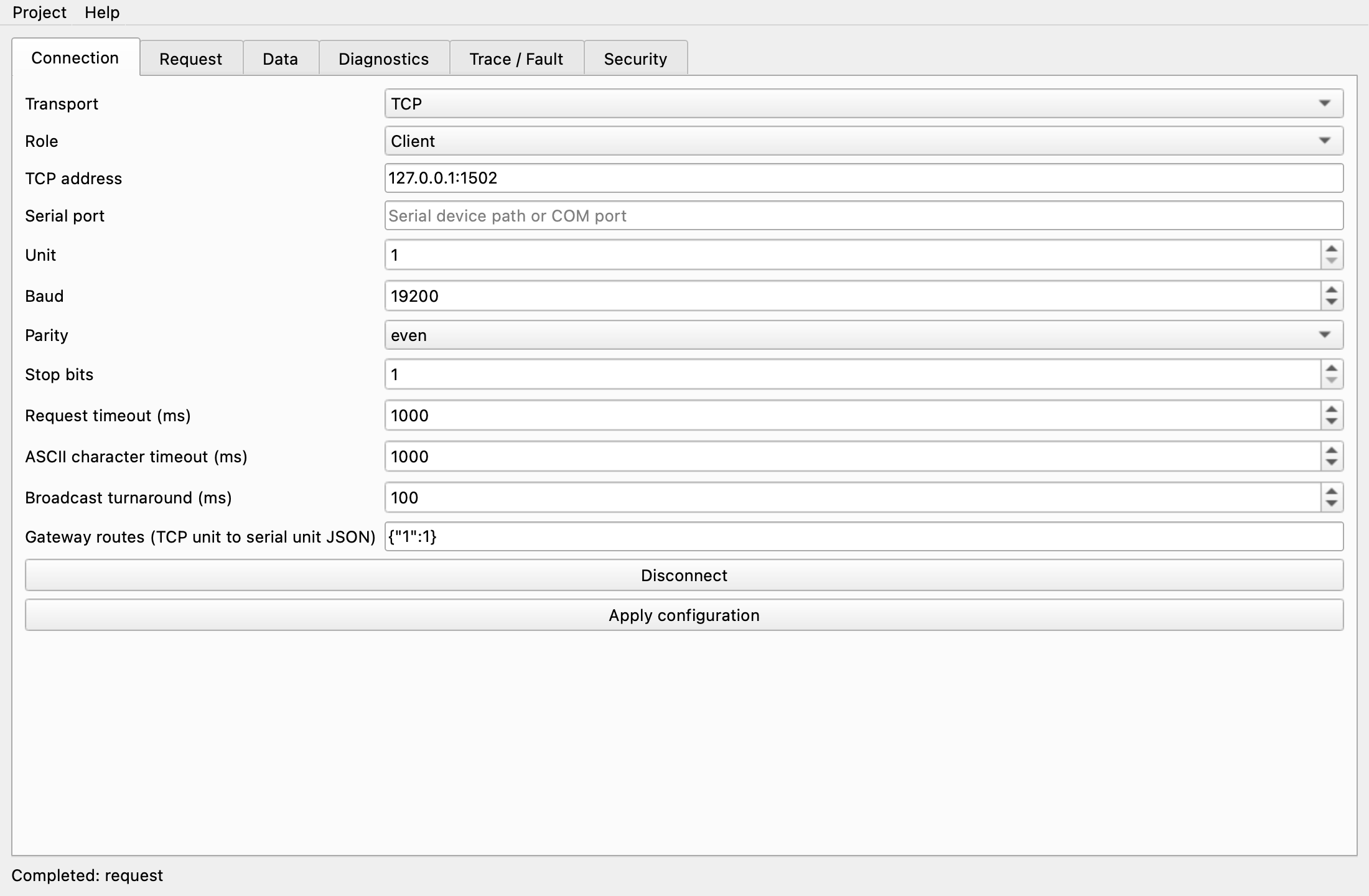
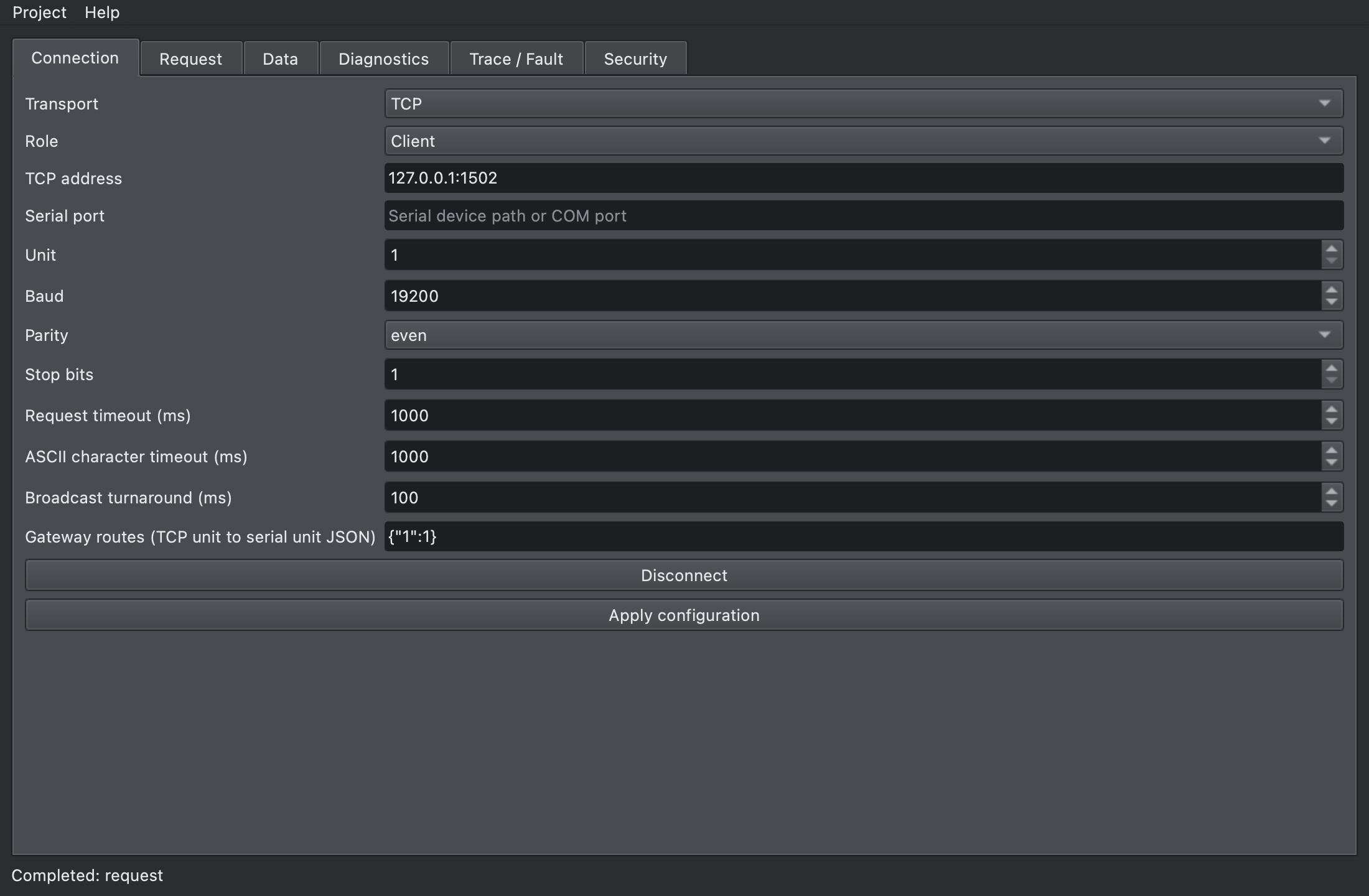
Connected as a client, the tab looks like this:
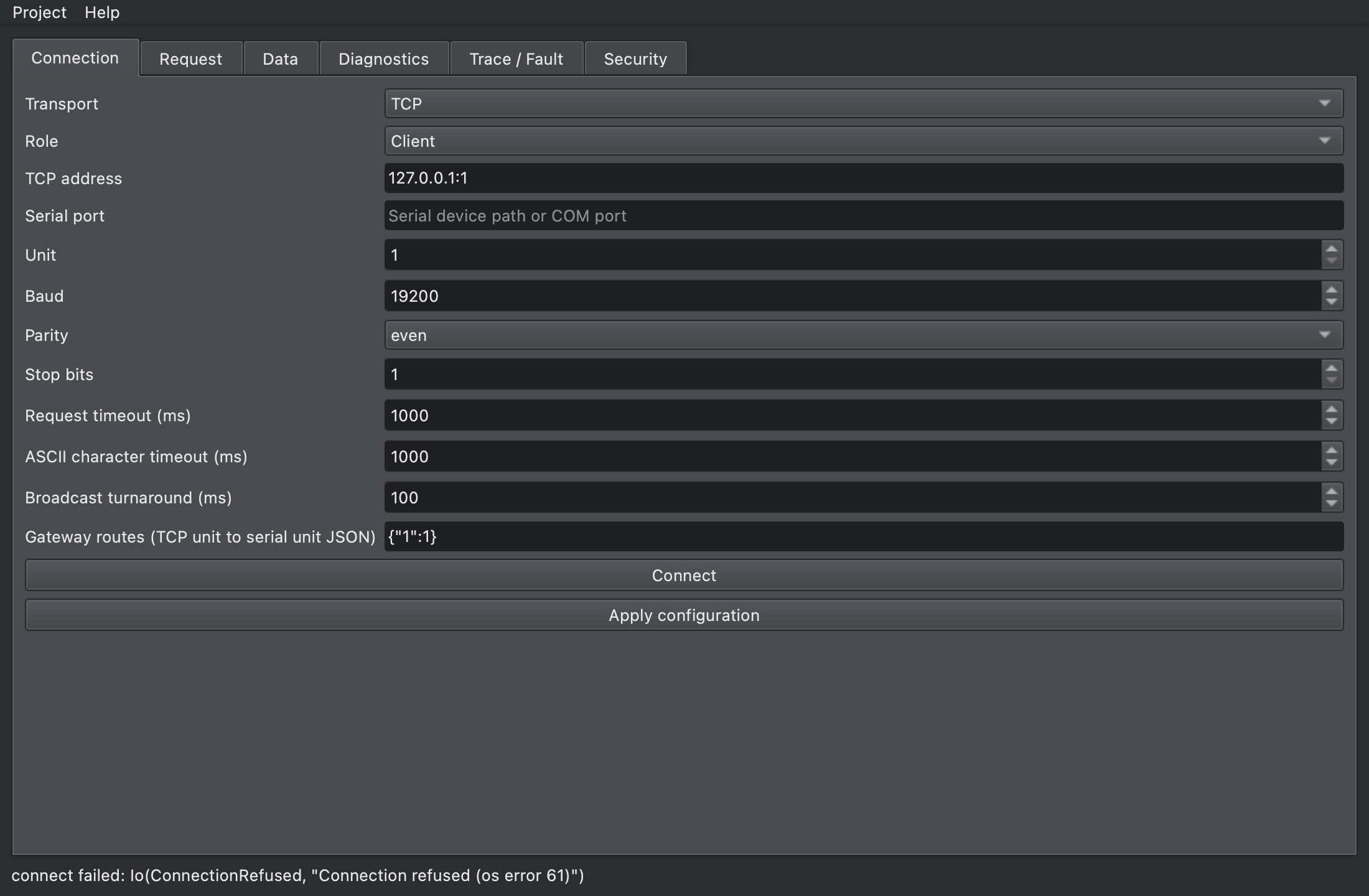
When a connection fails, the status line tells you why. Here the client tried a port nobody listens on:
Request
Section titled “Request”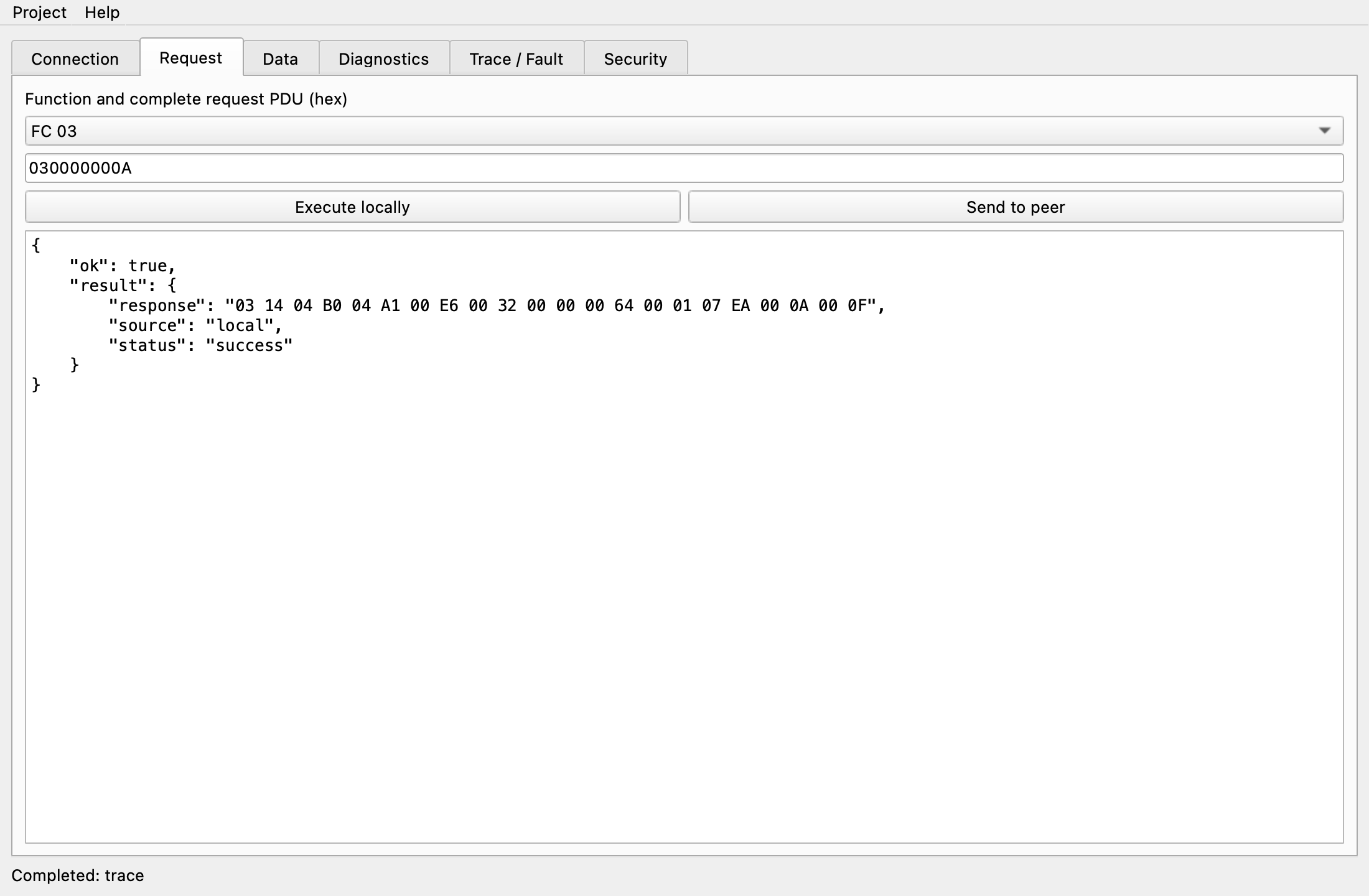
- Pick FC 01 to FC 43 in the list to fill in an example PDU for that function, then edit the address and values.
- Enter a complete request PDU in hex, starting with the function code. Leave out the unit address, the MBAP header and the CRC.
- Execute locally sends
execute: it runs against this window’s data model without any I/O, andsourceislocal. - Send to peer sends
request: a connected client sends it to the peer, andsourceiswire. - The unit is the Unit value of the Connection tab.
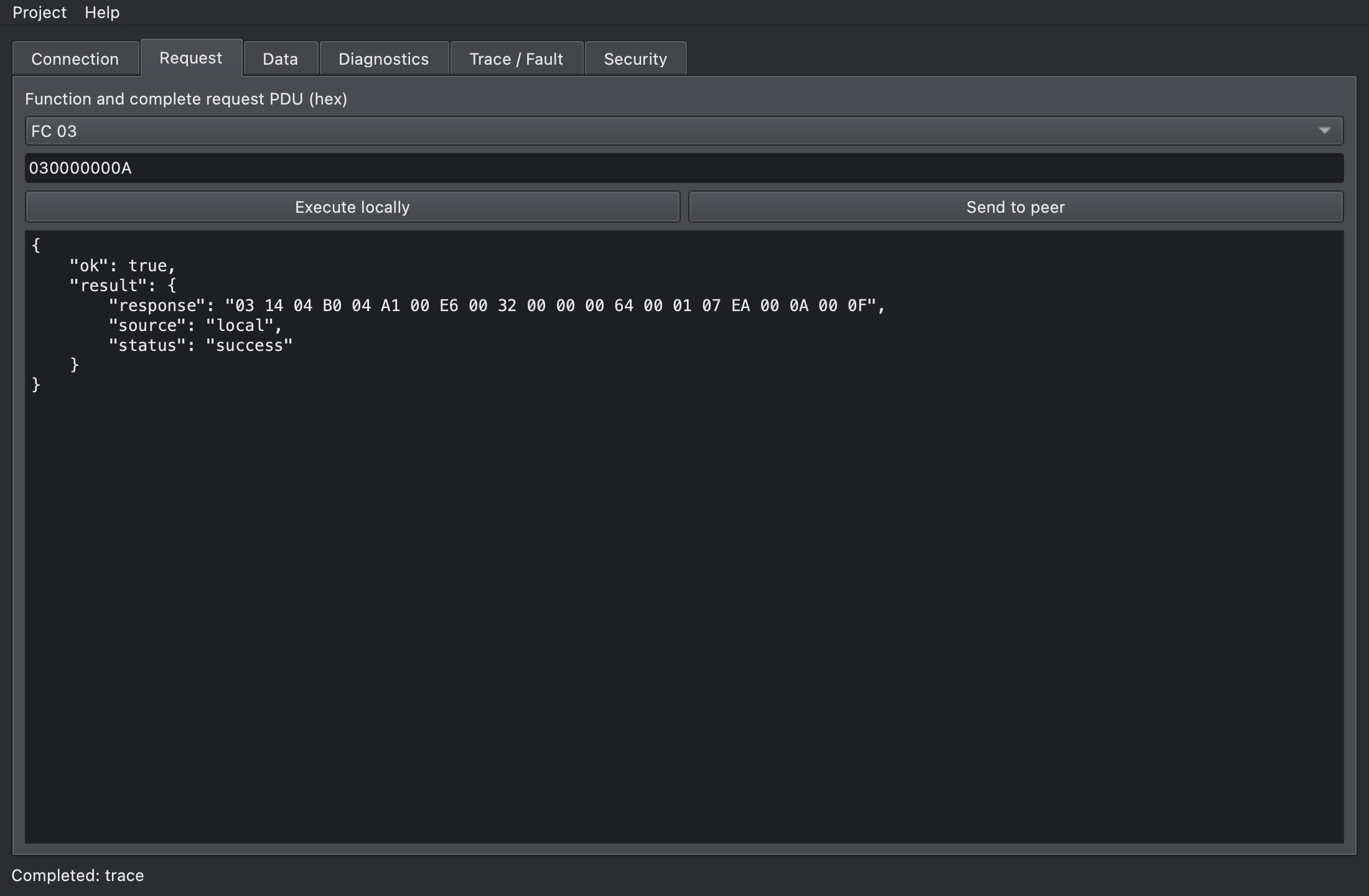
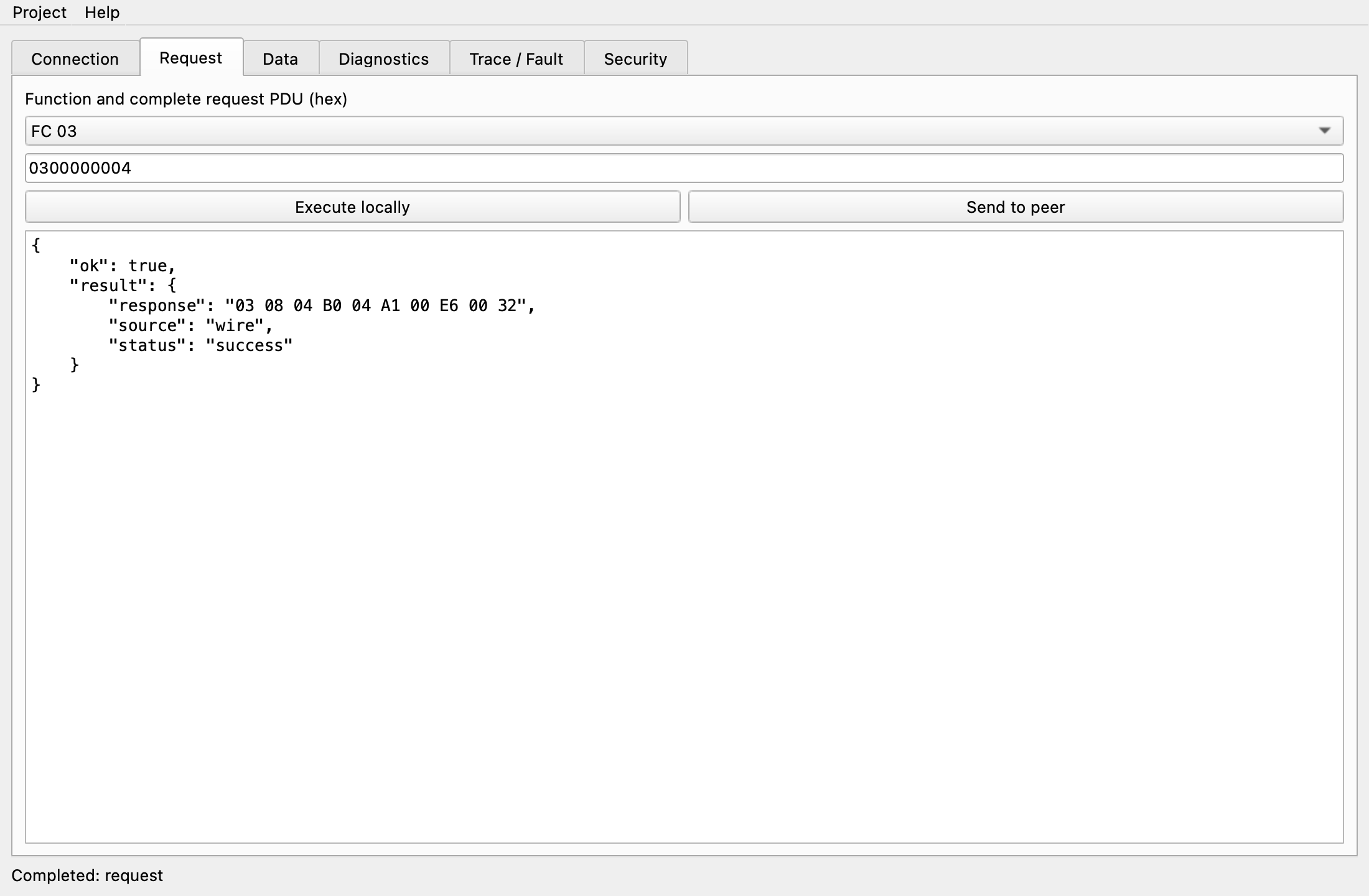
- The response pane shows the result JSON, with PDUs as hex bytes (
03 08 04 B0 ...) for readability.
A request sent from a client to a server:
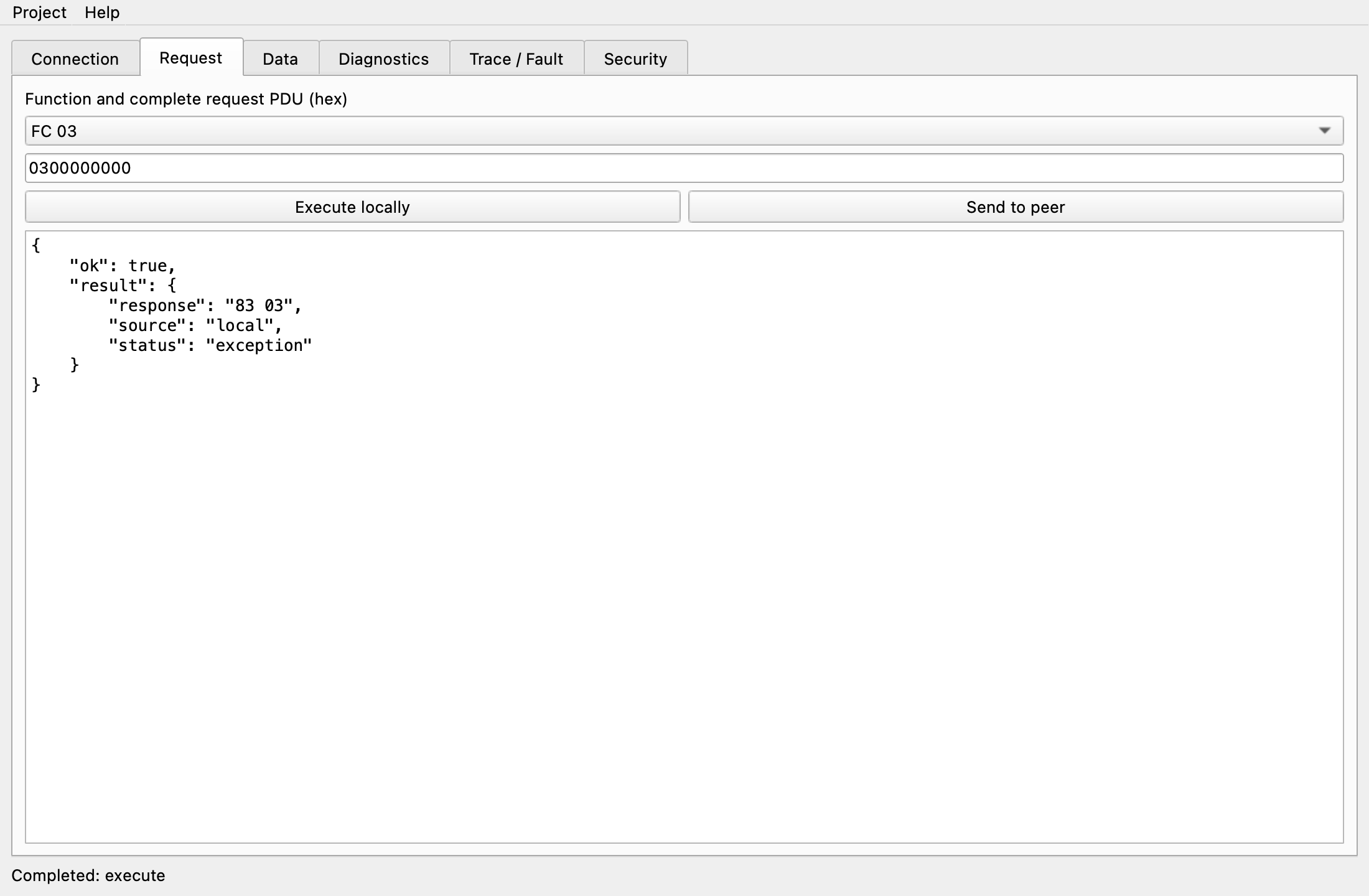
An exception response has status exception. Here a read with quantity 0 returns exception 03:
- Read model sends
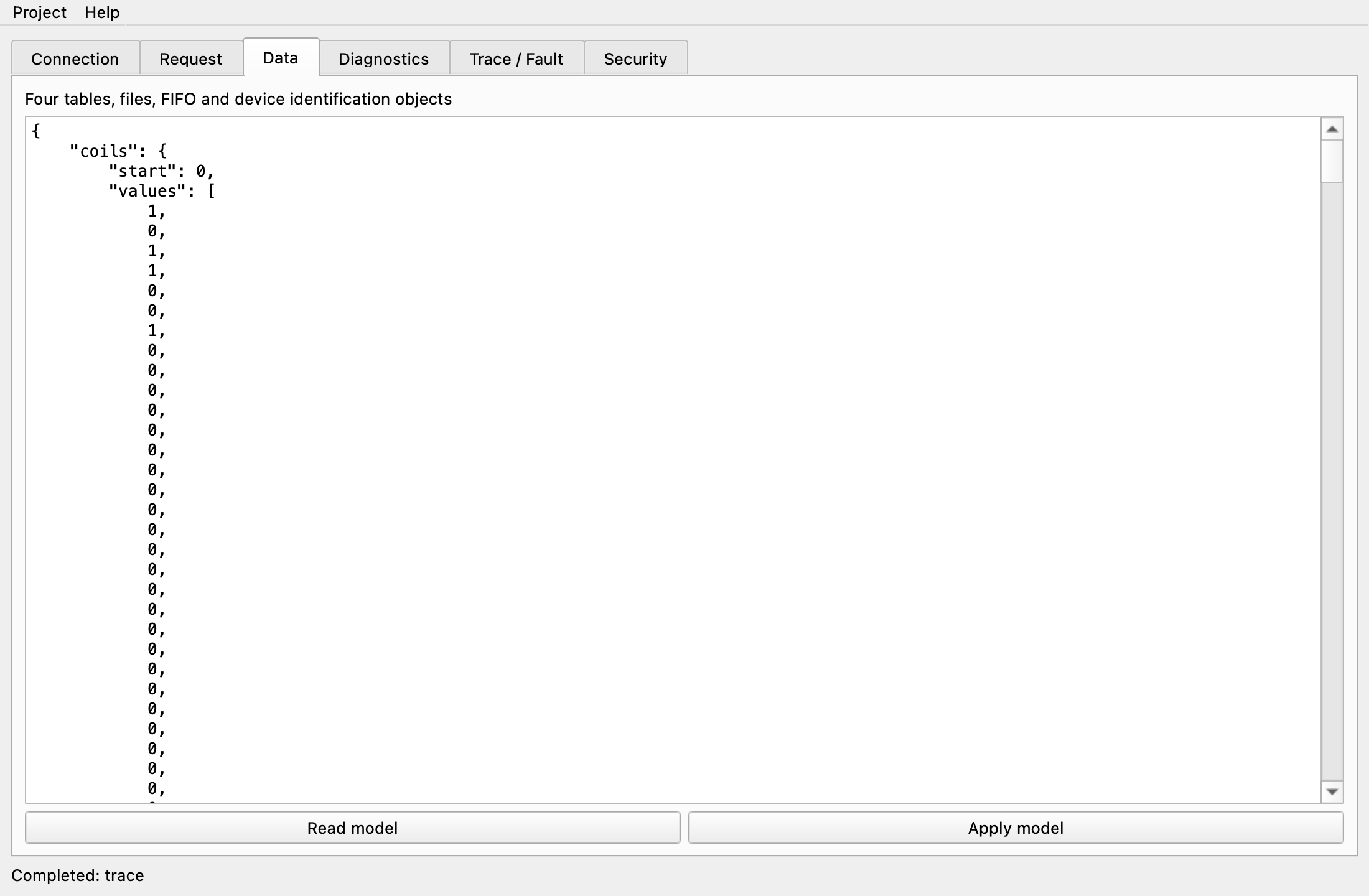
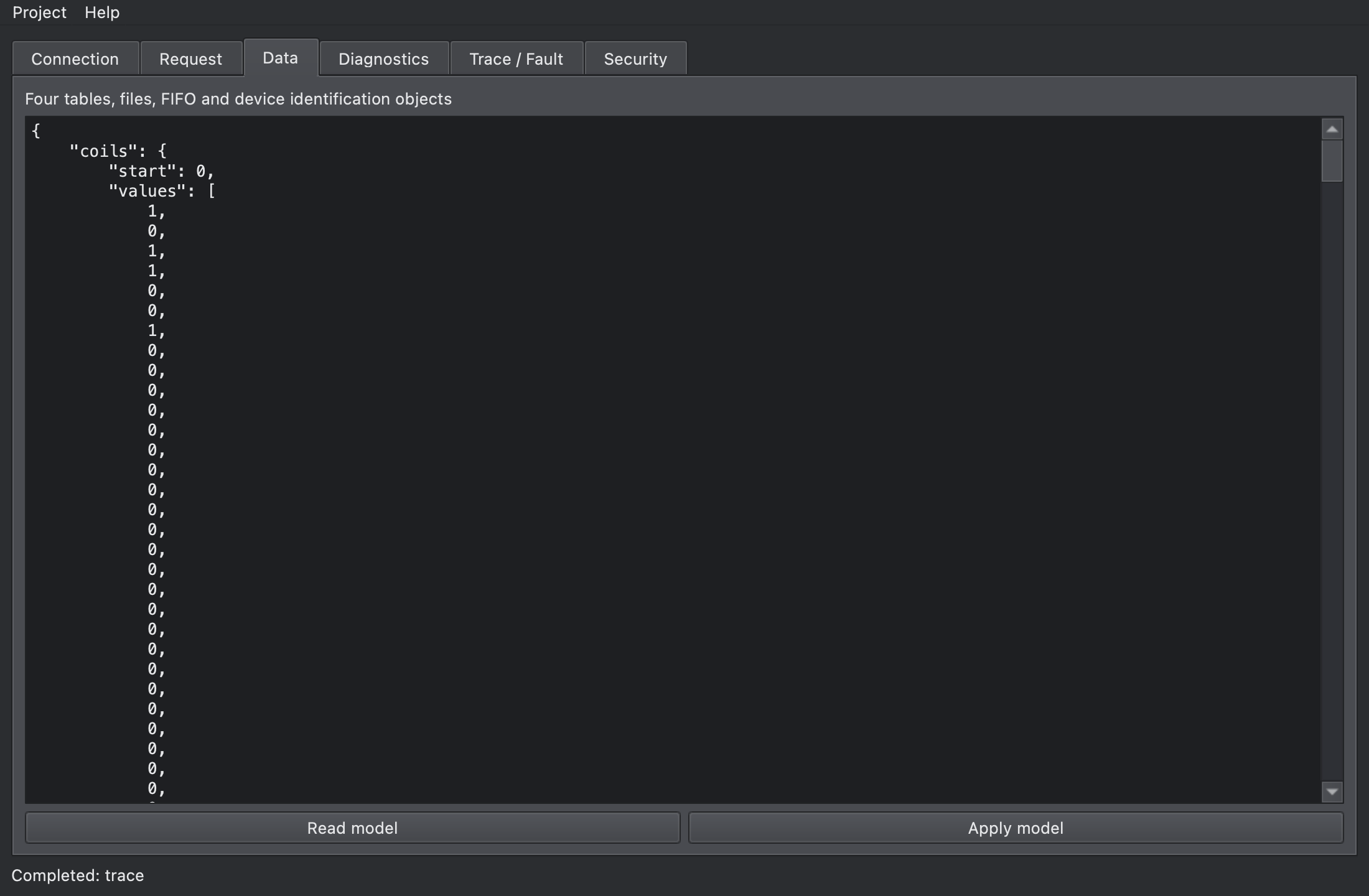
data_getand shows the four tables, file records, FIFOs, device identification objects, server ID and exception status as JSON. - Edit the values and click Apply model to replace the whole model with
model_set. Every member must be present. - If the JSON doesn’t parse, nothing is sent and the status line shows
Invalid model JSON. - Well-formed JSON with invalid values (such as 2 in a bit table) fails with an error like
model_set failed: Bit table values must be zero or one, and the model stays as it was. - While connected as a server, you read and change the live server model.
JSON command reference describes the model format.
Diagnostics
Section titled “Diagnostics”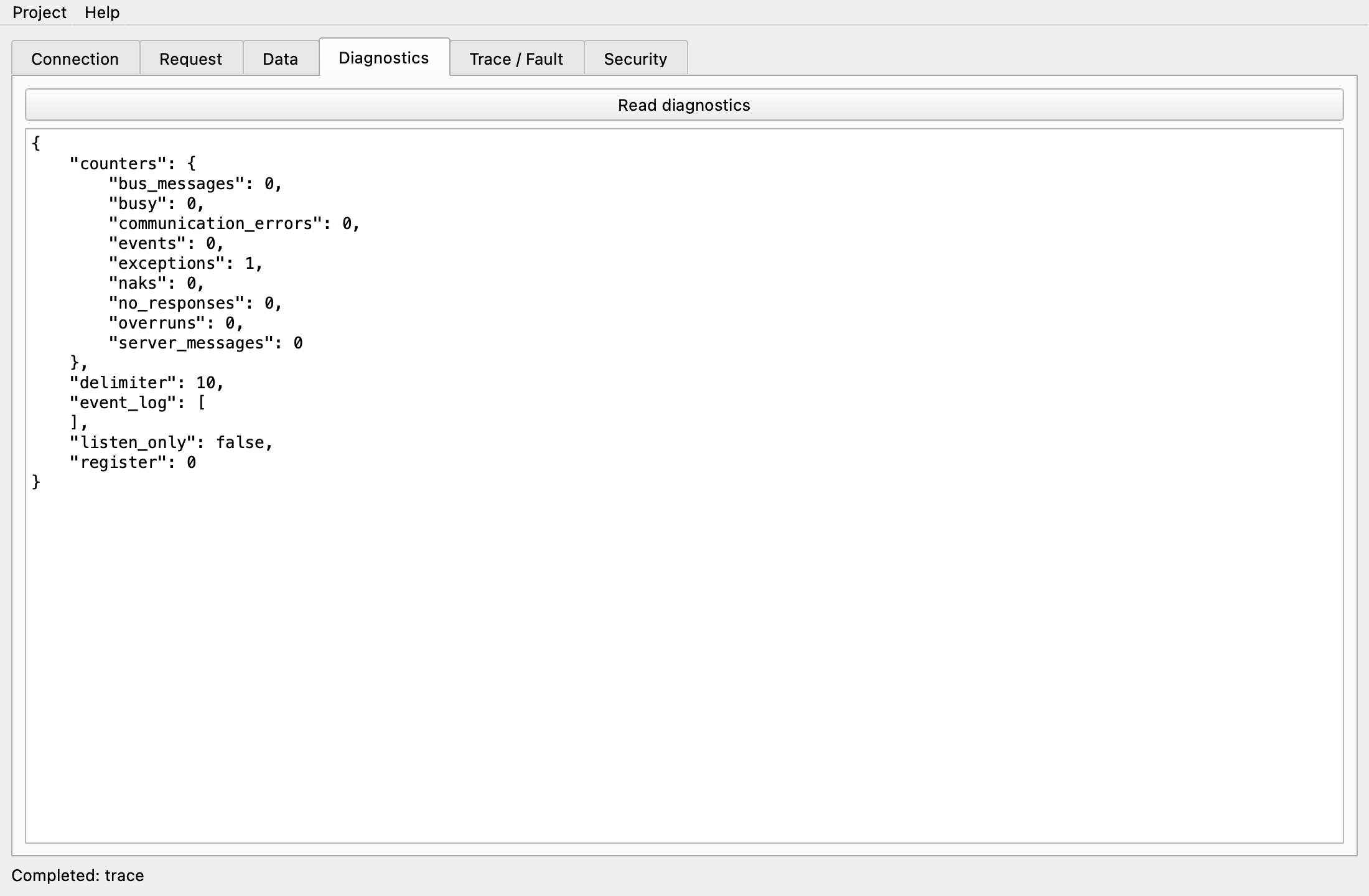
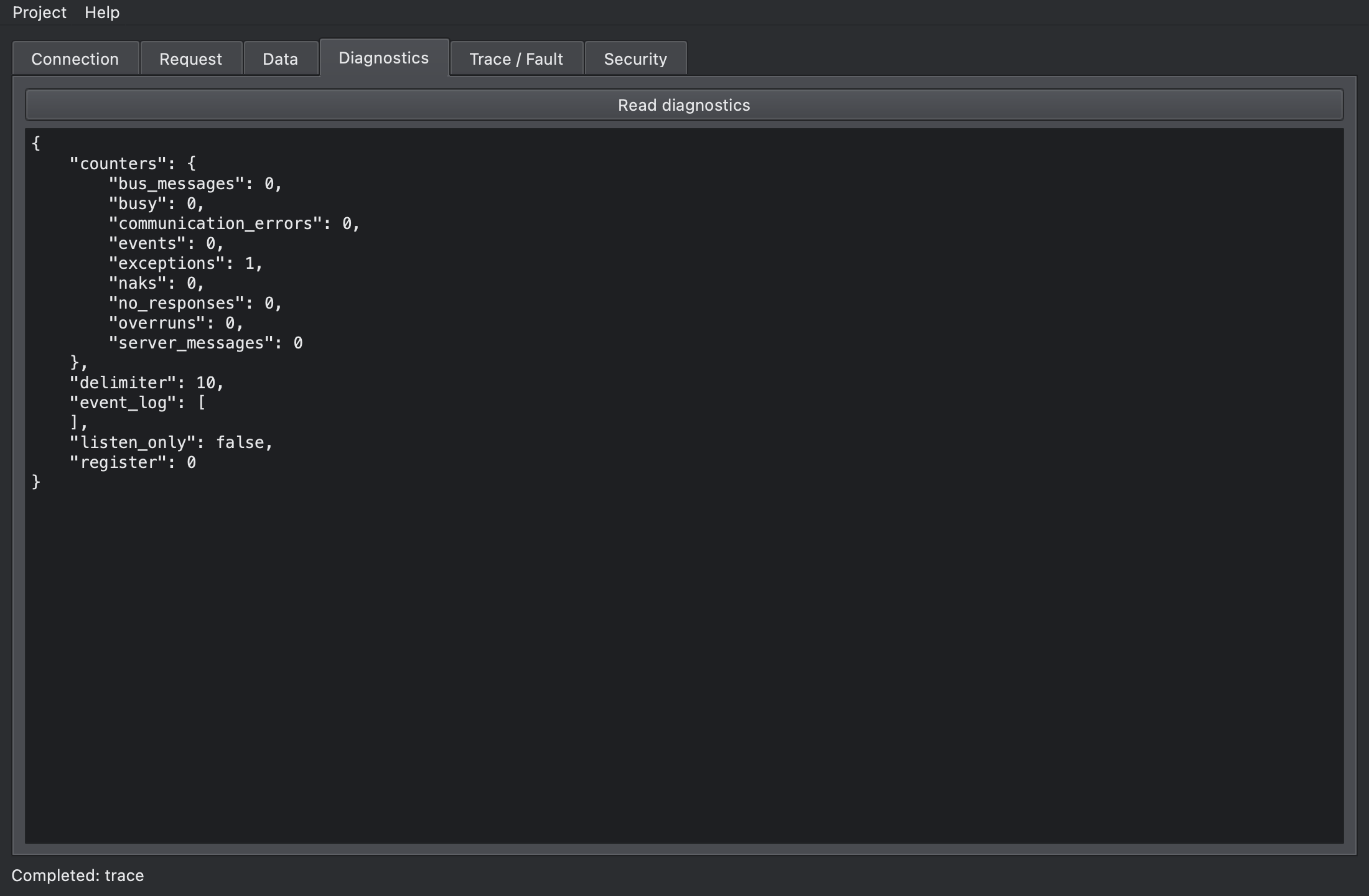
Read diagnostics sends diagnostics. It shows a serial server’s counters (counters), the ASCII end character (delimiter, 10 is LF), the event log, listen-only mode (listen_only) and the diagnostic register (register). A TCP server still counts exceptions (exceptions). See Diagnostics sub-functions for what each counter means.
Trace / Fault
Section titled “Trace / Fault”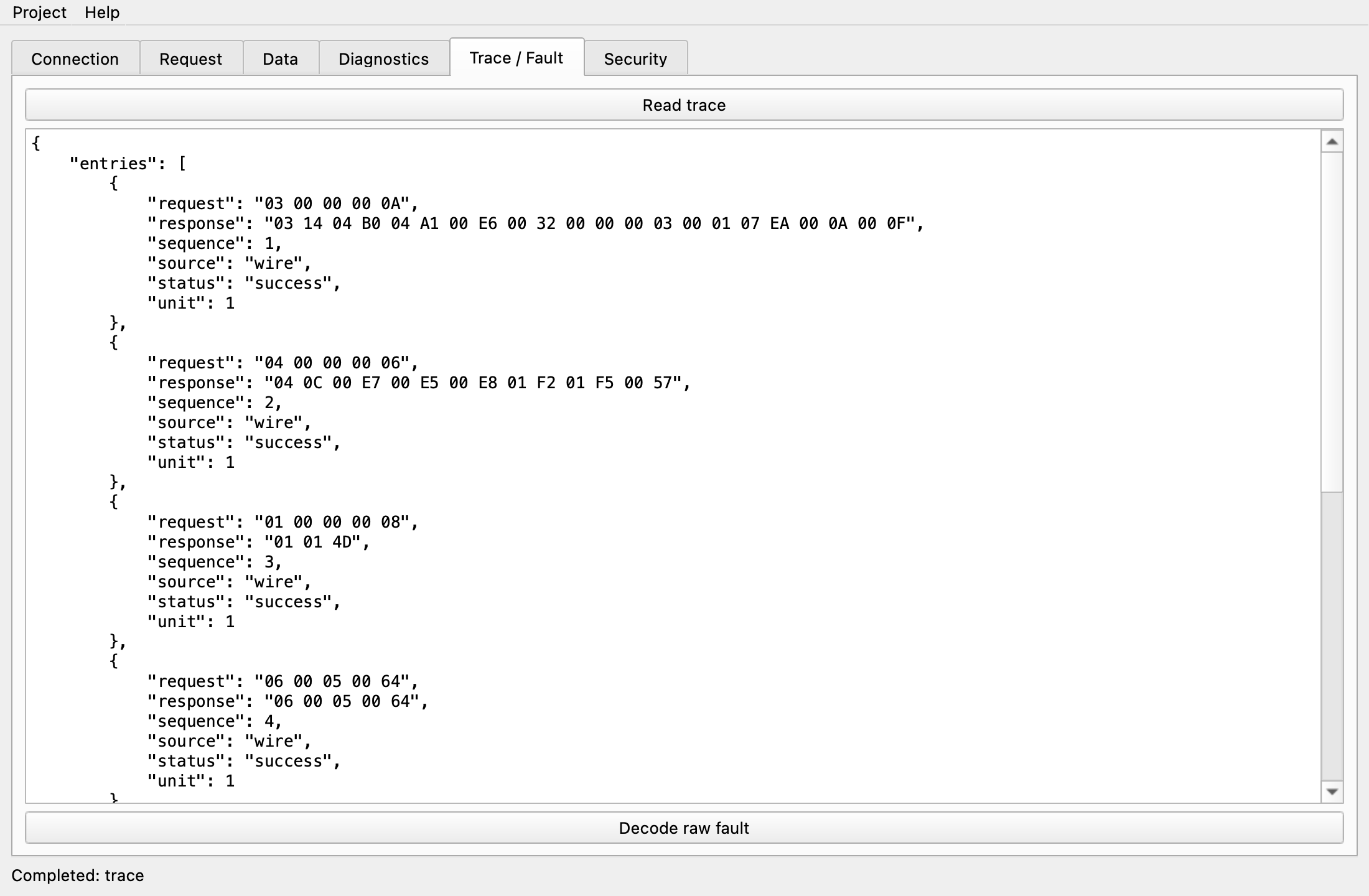
- Read trace sends
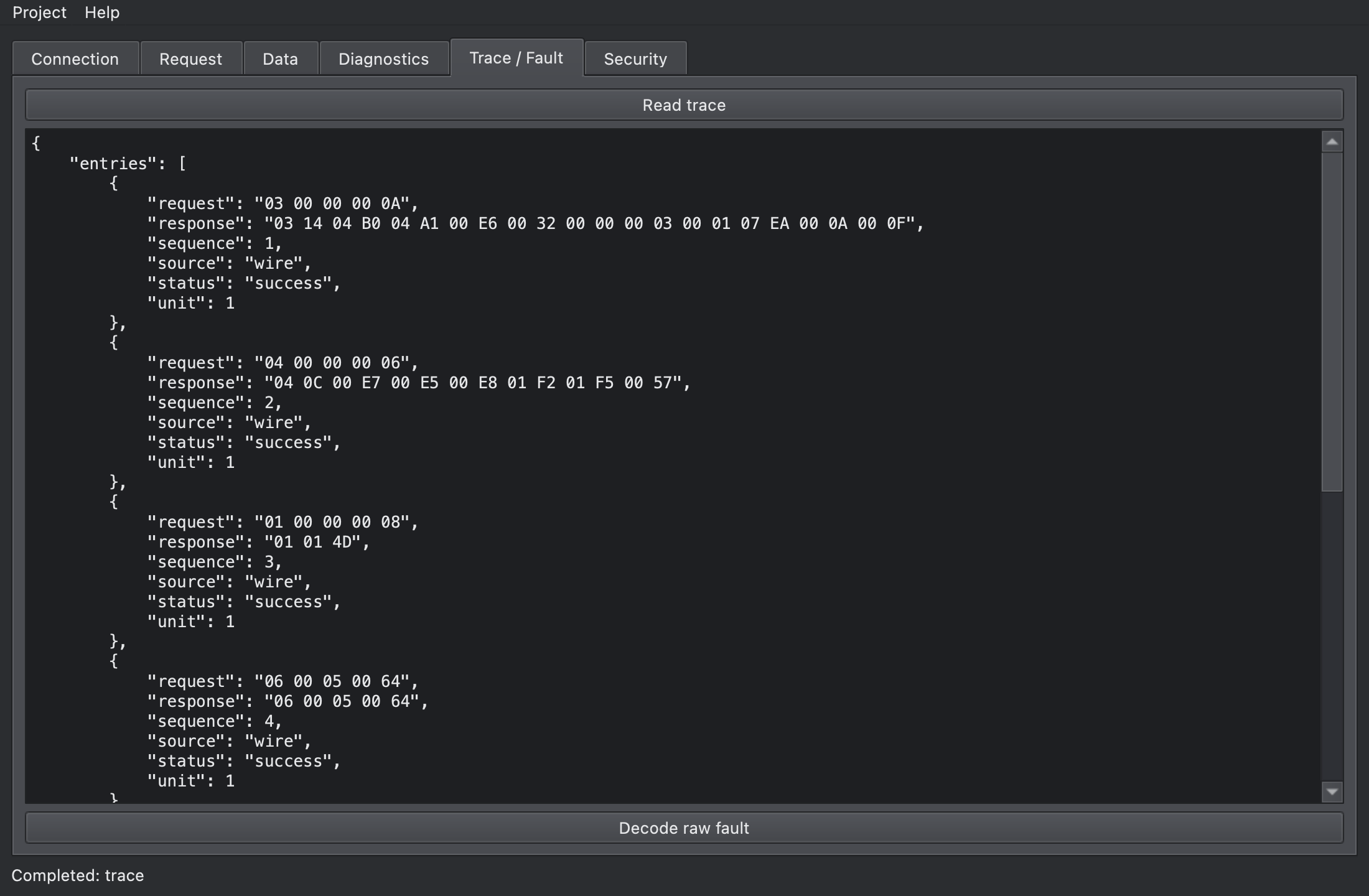
traceand lists the last 1000 requests and responses plus raw serial bytes.sourceislocal(Execute locally) orwire(real communication). - Decode raw fault sends
fault. Just for this button, it treats the text in the Request tab’s PDU field as raw bytes and decodes them with the decoder of the Connection tab’s Transport. The result’ssourceissynthetic; nothing is injected into a real line. - Afterwards, put a normal PDU back into the Request tab’s field.
For example, with Transport RTU and 01030000000AC5CC in the field, Decode raw fault reports Checksum in errors. Observe addresses and frames has more examples.
Security
Section titled “Security”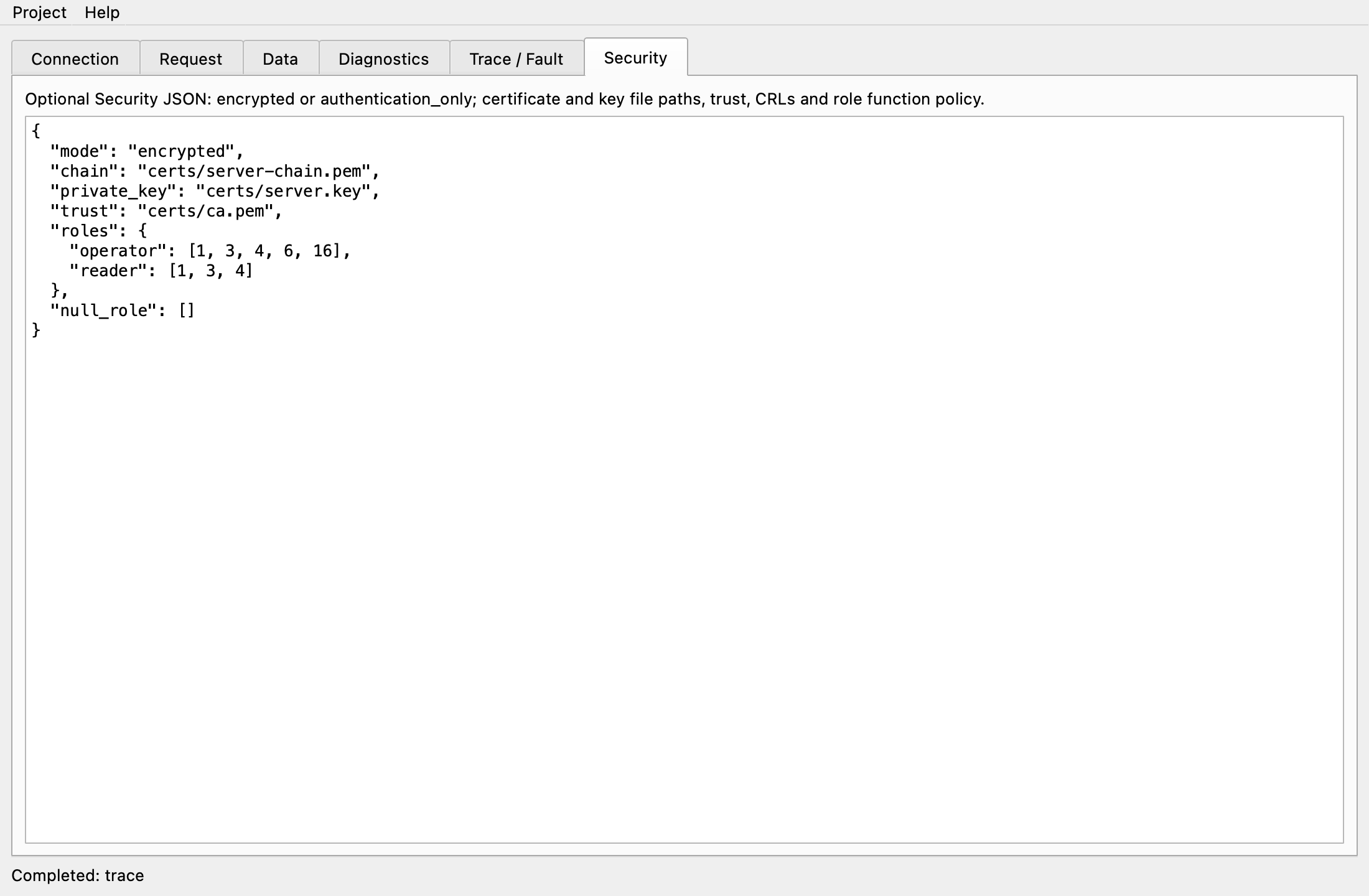
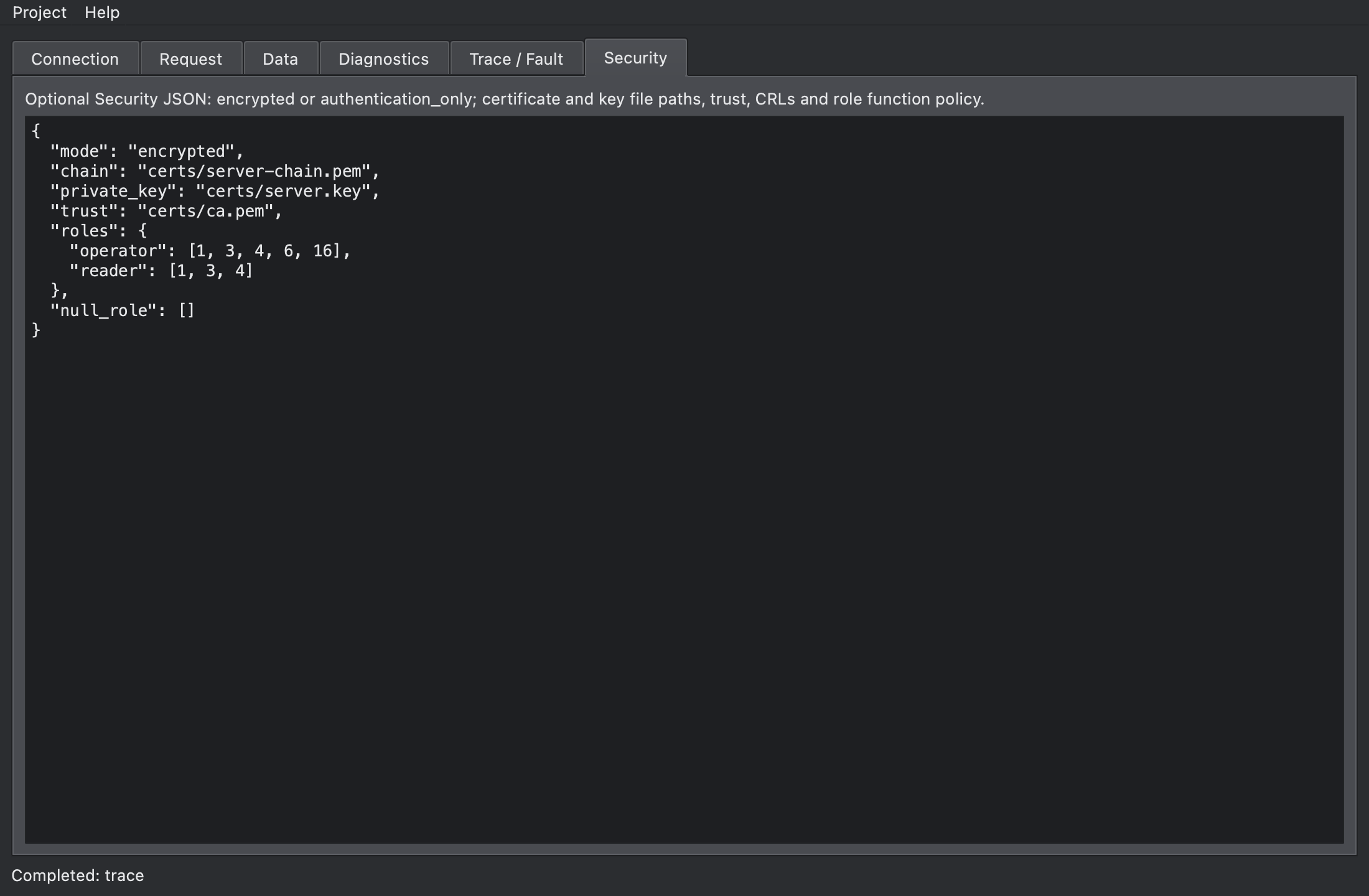
The Security tab takes the configuration’s security object as JSON.
- Leave it empty for plain Modbus TCP.
- When it has content, Connect and Apply configuration send it as
security. The format is in PDComm security configuration. - Invalid JSON fails with
configure failed: invalid type: string "Invalid JSON", expected struct Security. - Servers use
rolesandnull_role; clients usehostname. - Paths may be relative to the folder the GUI started in, but use absolute paths in projects you’ll open elsewhere.
- In an SDK without Security, the editor is disabled and shows
Security is excluded from this build.
Project menu
Section titled “Project menu”| Menu | Command | Description |
|---|---|---|
| Save… (Ctrl+S, Cmd+S on macOS) | project_export |
Saves the configuration and the model as a *.modbus.json file. Fails with Cannot save project. |
| Open… (Ctrl+O, Cmd+O on macOS) | project_import |
Loads a file and refreshes Connection, Security and Data. |
- You can open a project only while disconnected; otherwise you get
project_import failed: Disconnect before loading a project. - A file larger than 16 MiB or one that can’t be read gives
Cannot read project; a file that isn’t JSON givesInvalid project JSON. - A
kindother thanpdcomm.modbus.projector aversionother than 1 givesUnsupported Modbus project kind or version, and the current state stays unchanged. - The headless simulator and the MCP server load the same files with
project_import; see Project files.
Next steps
Section titled “Next steps”- Follow Build a test workflow with the simulators to run a GUI server against a console client.
- Look up status line errors in Service errors.