Virtual serial manager
The virtual serial manager (pdcomm-vserial-manager) is a GUI for editing and running labs. Behind the scenes it runs pdcomm-vserial run and sends the same control commands, so a lab file you build in the GUI works unchanged from the command line and the MCP server.
The manager runs the pdcomm-vserial program in its own folder. To use a program elsewhere, set the PDCOMM_VSERIAL_BIN environment variable to its path before you start the manager.
Window layout
Section titled “Window layout”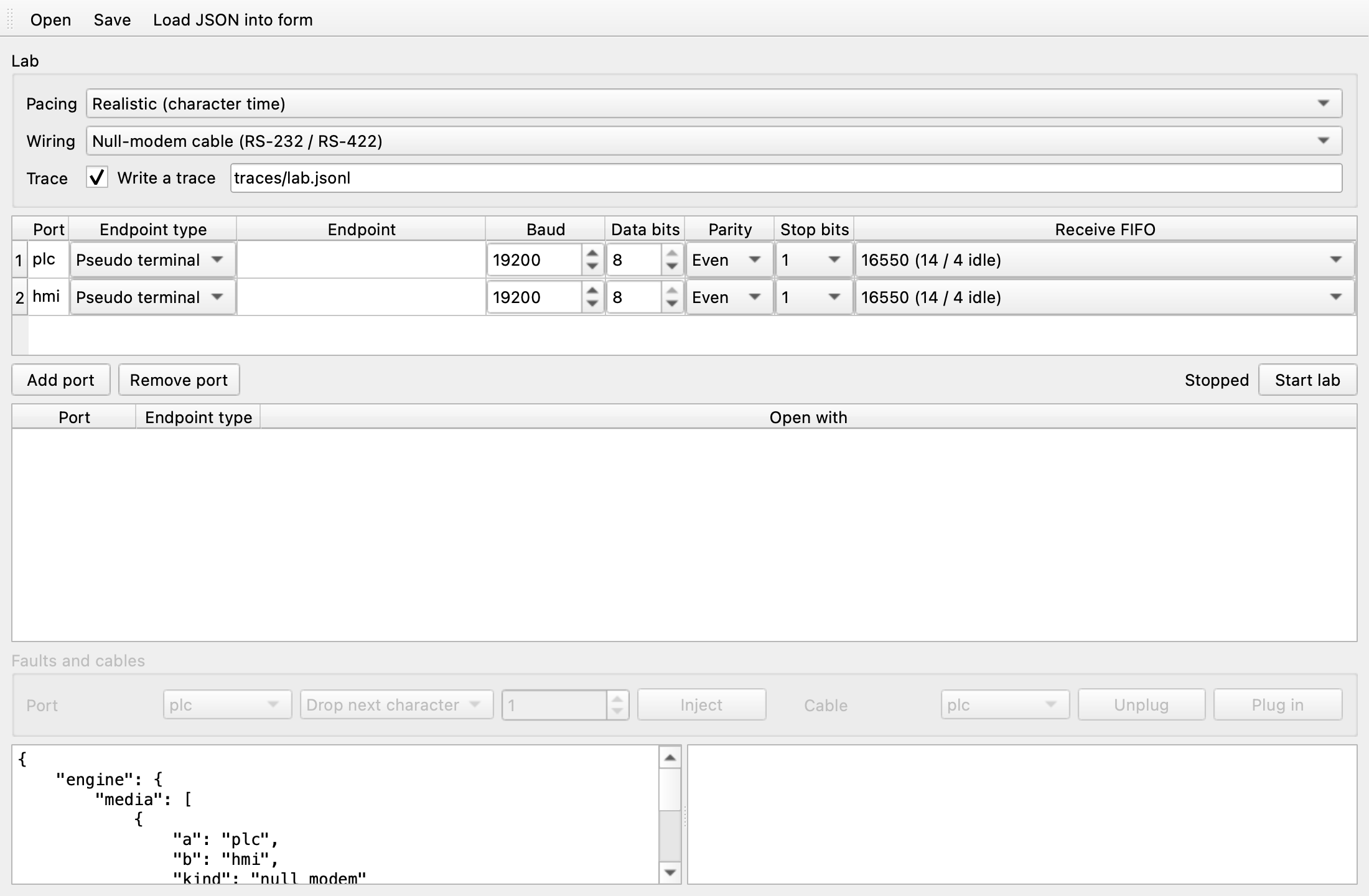
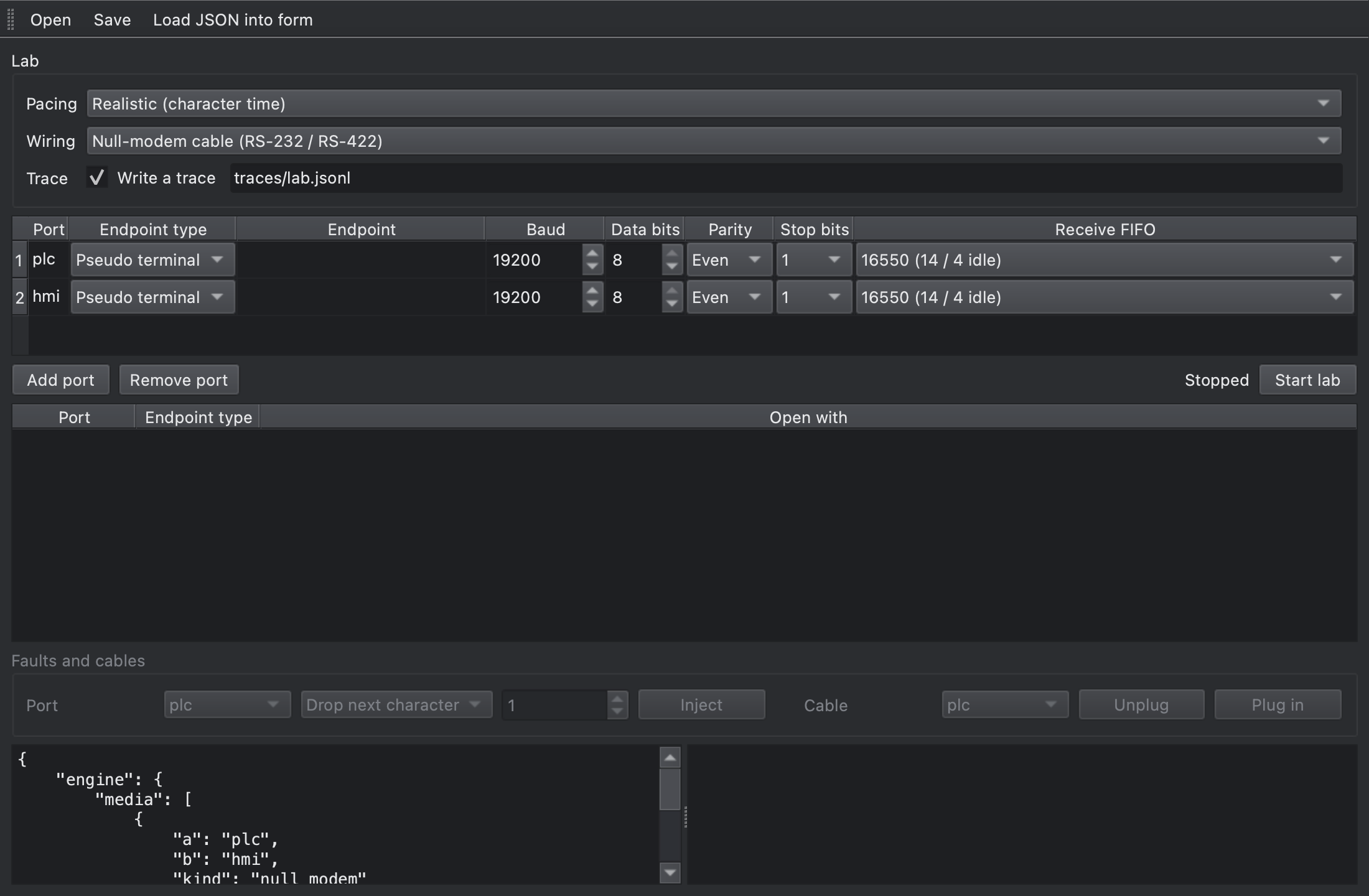
| Area | Contents |
|---|---|
| Toolbar | Open opens a lab file and Save saves the JSON editor’s content. Load JSON into form reads JSON you edited back into the form. |
| Lab | Pacing, Wiring, and Trace (the trace file). |
| Port table | For each port: Port (the node name), Endpoint type, Endpoint, Baud, Data bits, Parity, Stop bits, and Receive FIFO. |
| Add port, Remove port | Add a port or remove the selected one. |
| Status and Start lab | Shows the state (Stopped, Starting, Running, or Stopped with an error) and starts or stops the lab. |
| Running ports table | Port, Endpoint type, and Open with (the path or address an application opens) of the running lab. |
| Faults and cables | Inject faults and unplug or plug in cables while the lab runs. |
| JSON editor and log | On the left, the lab JSON the form produces; on the right, results and errors. |
The Wiring choice applies to the ports in table order:
| Wiring | Connects |
|---|---|
| Null-modem cable (RS-232 / RS-422) | The first and second ports |
| Two-wire RS-485 bus | All ports |
| Four-wire RS-422 / RS-485 bus | The first port as master, the others as slaves |
| Loopback plug | The first port |
Fill in Endpoint type and Endpoint like this:
| Endpoint type | Endpoint |
|---|---|
| Pseudo terminal | Empty, or a link path such as /tmp/pdcomm-plc |
| Port driver | A driver port number such as 0 |
| RFC 2217 server, Raw TCP server | A listening address such as 127.0.0.1:7001; empty means 127.0.0.1:0 |
In Receive FIFO, 16550 (14 / 4 idle) collects characters like a 16550 UART, and Per character delivers each character on its own.
Start a lab
Section titled “Start a lab”-
Start the manager. The default form has pseudo terminal ports
aandbjoined by a null modem. -
Change the port names, speeds, and formats. The JSON editor updates with every change.
-
To record a trace, select Write a trace and enter a file path.
-
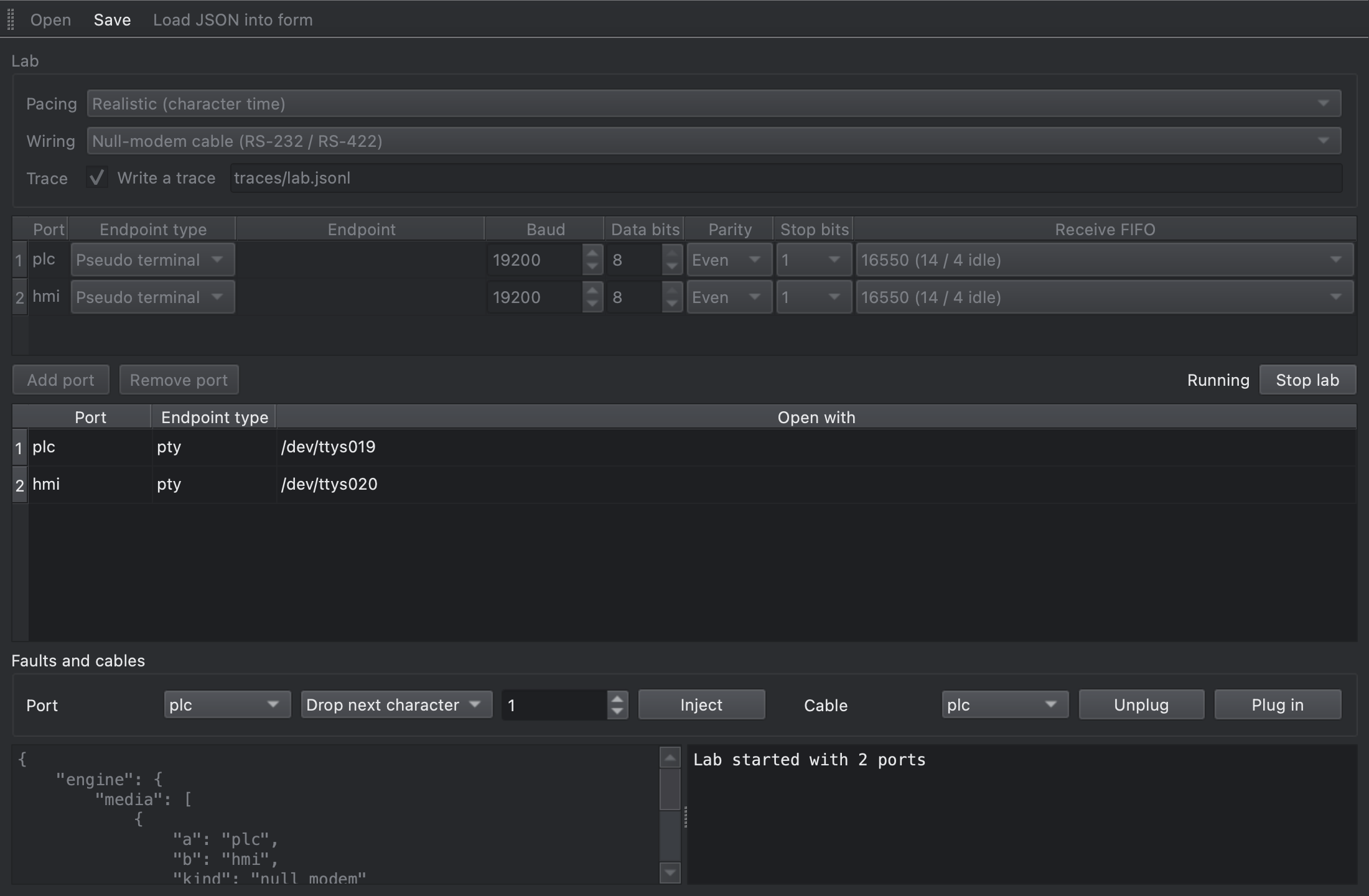
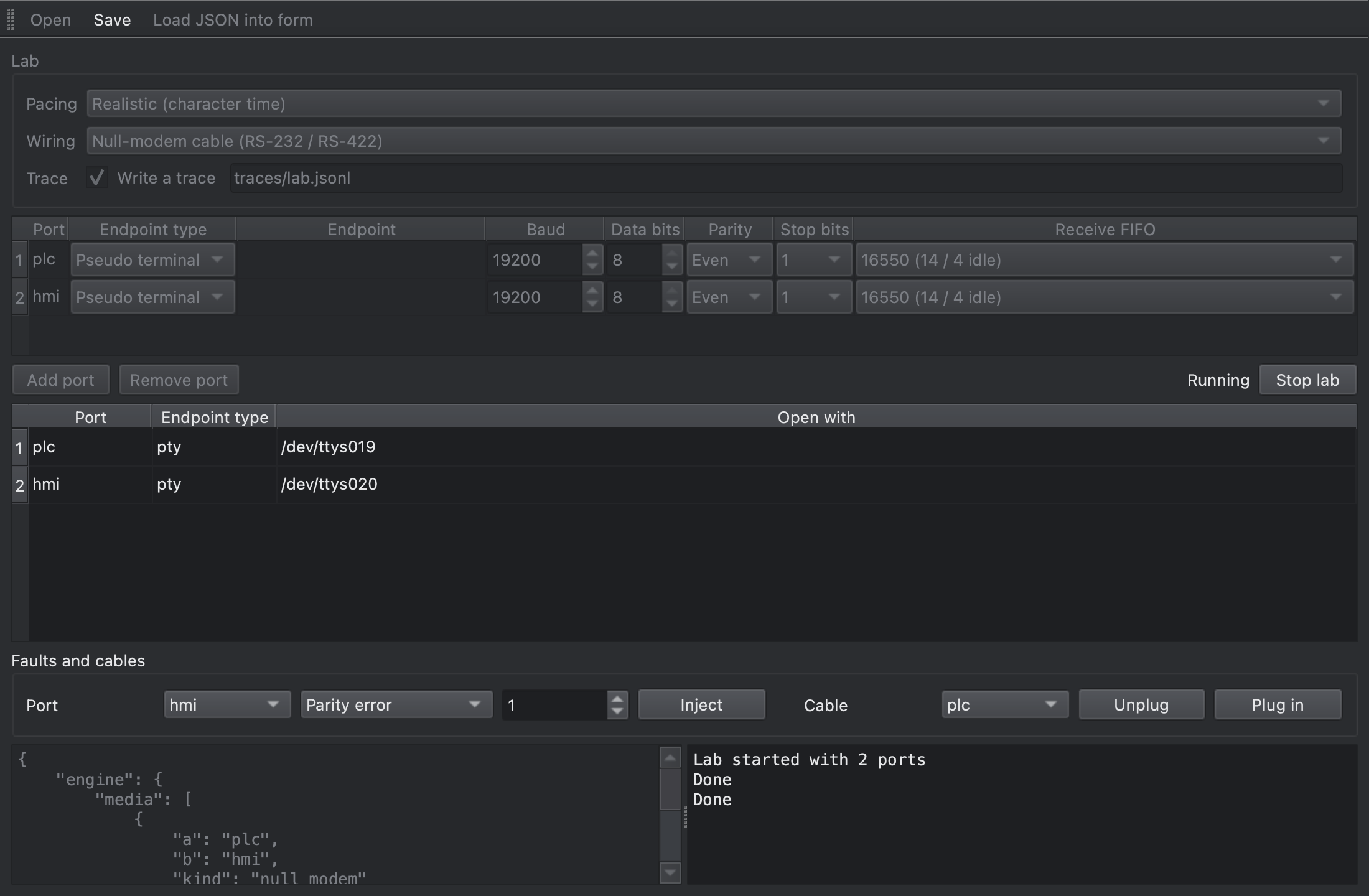
Click Start lab. The state changes to Running, the Open with column shows the path for each port, and the log shows
Lab started with 2 ports.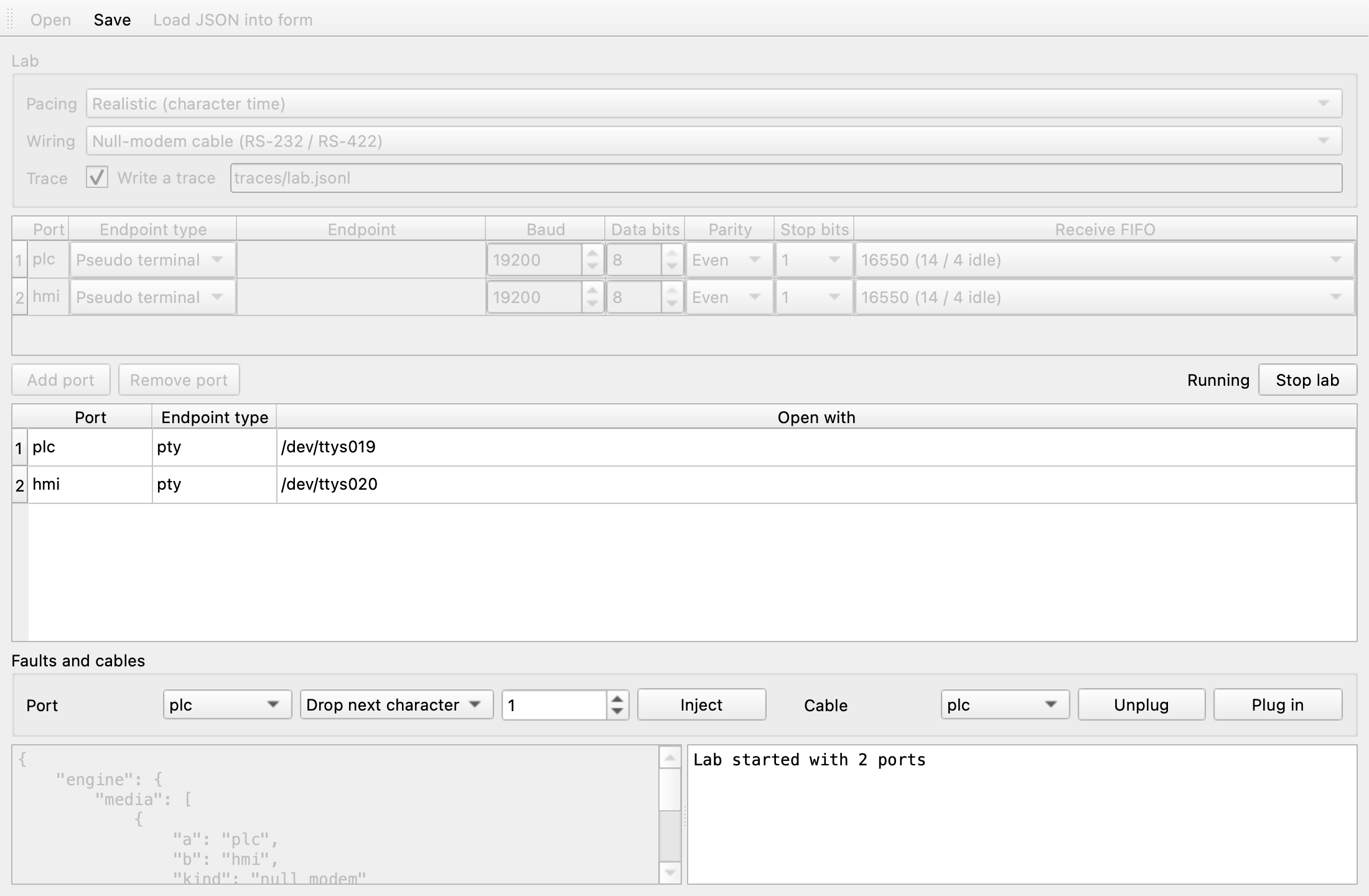
-
Open the path from Open with in your application.
-
When you’re done, click Stop lab. The state changes to Stopped, and the log shows
Lab stopped.
While a lab runs, the form, the JSON editor, Open, and Load JSON into form are unavailable, because the running lab keeps the settings it started with. Faults and cables is available only while a lab runs.
Inject faults and unplug cables
Section titled “Inject faults and unplug cables”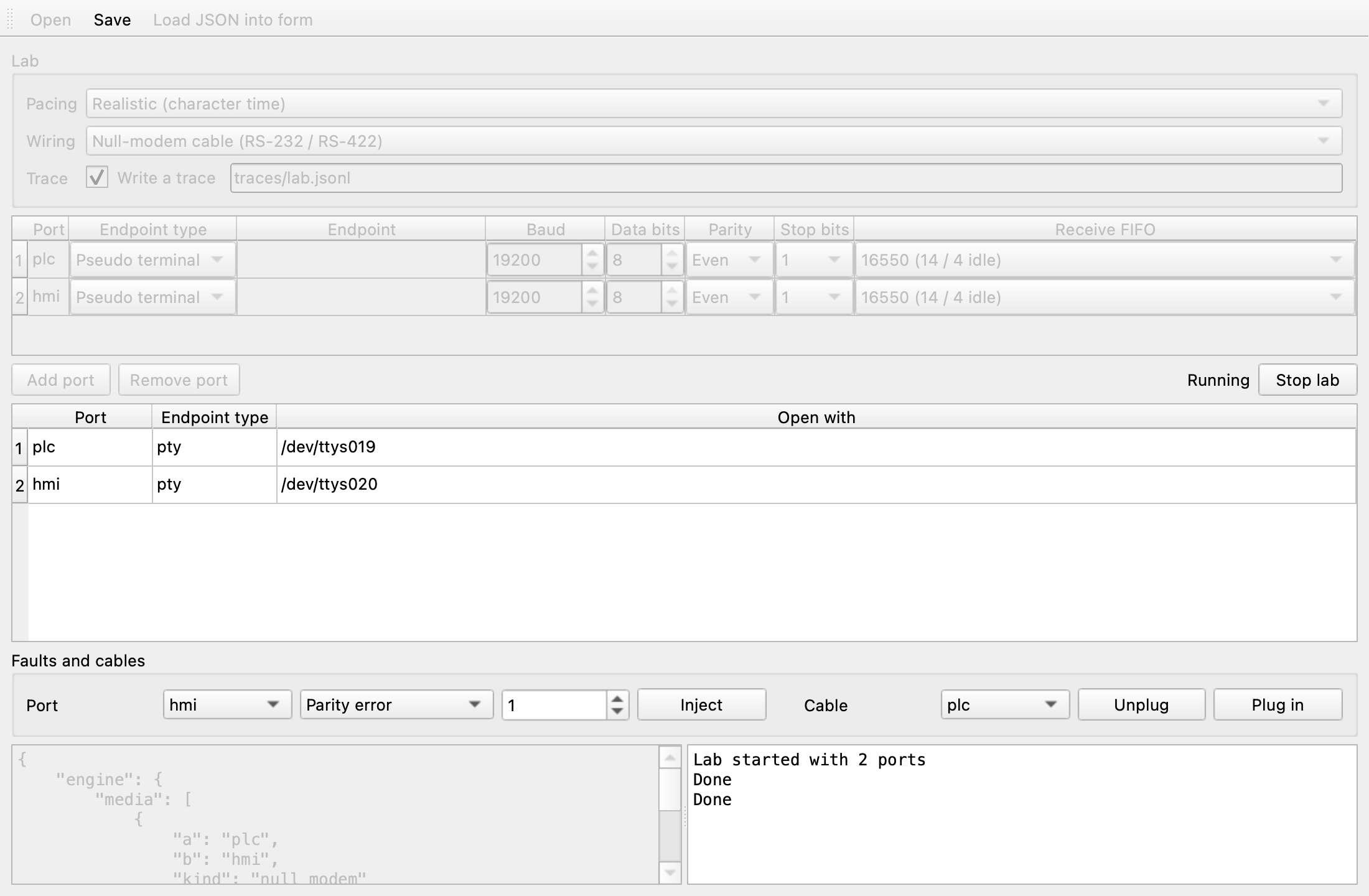
-
Choose a port under Port, choose a fault, and click Inject. The fault applies to the next character that port receives.
Fault Effect Drop next character Drops the character. XOR next character Flips bits with the number to the right (0 to 255). Parity error, Framing error, Overrun, Break Flags that receive error. Noise character Immediately delivers one noise character, the number to the right, with a framing error. -
Choose a port under Cable and click Unplug or Plug in. An unplugged port neither sends nor receives.
The log shows Done when a command succeeds and Refused: <cause> when the lab rejects it.
Build an RS-485 bus
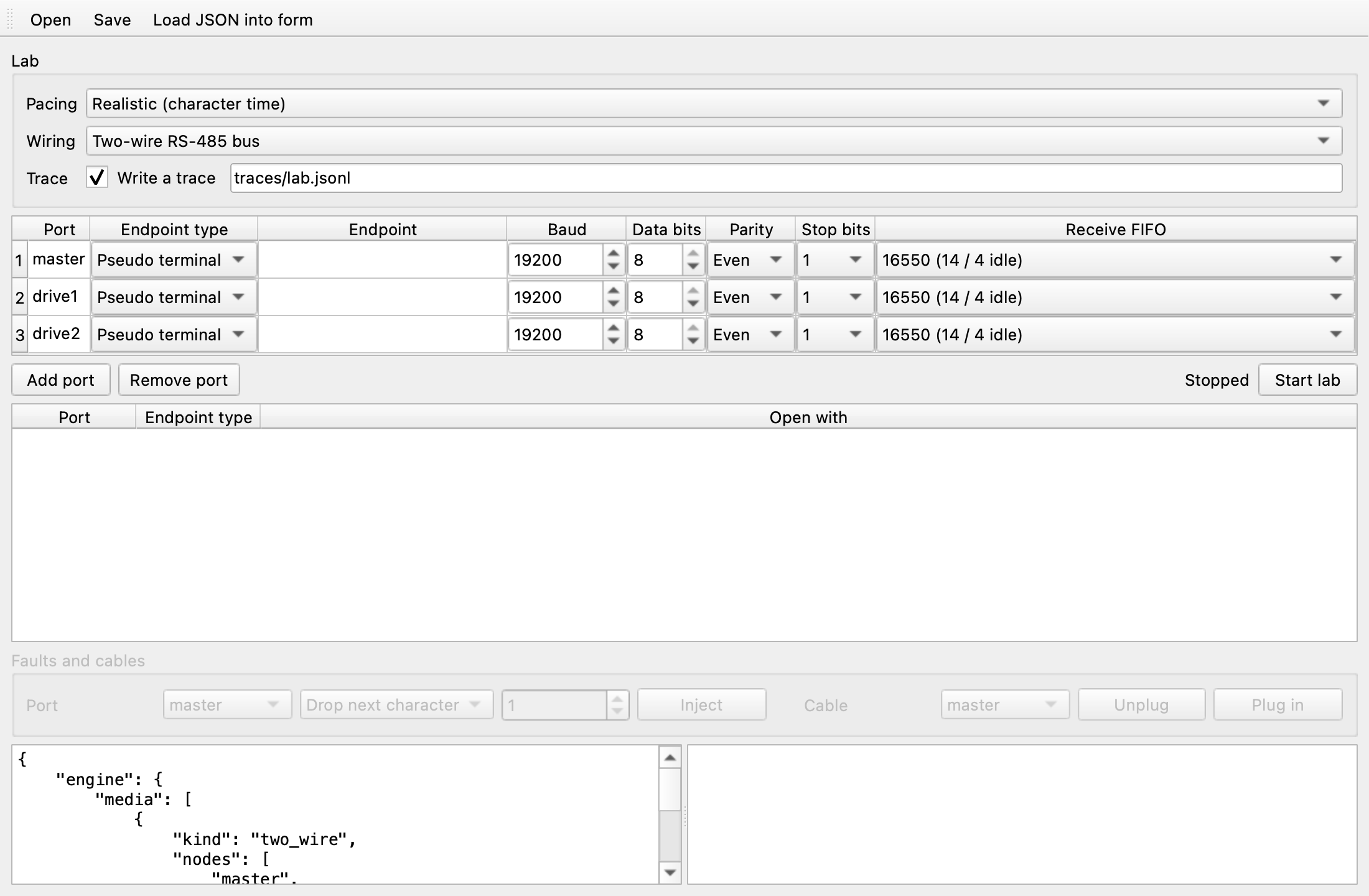
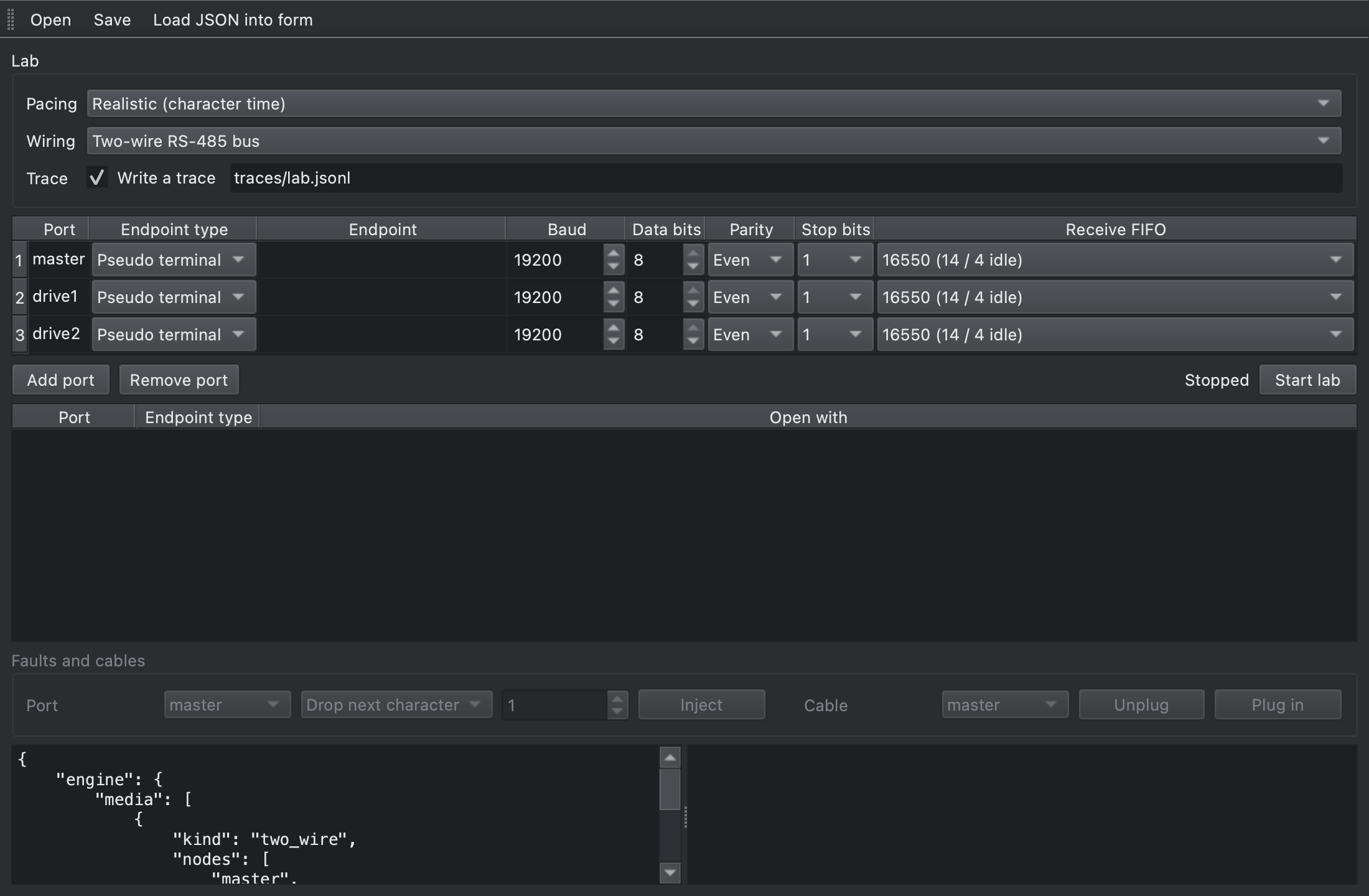
Section titled “Build an RS-485 bus”Add ports with Add port and set Wiring to Two-wire RS-485 bus. All ports then share one half-duplex pair. For protocols where character gaps matter, such as RTU, keep Pacing at Realistic (character time).
To run Modbus RTU on the bus, follow Test Modbus RTU on a virtual RS-485 bus.
Advanced settings and errors
Section titled “Advanced settings and errors”The form covers the common settings. For fault probabilities, RS-485 driver control, bridges, and other settings, edit the JSON editor directly or open a lab file with Open. pdcomm-vserial commands and lab files describes every setting. If the JSON in the editor has a syntax error, the lab doesn’t start and the log shows Invalid lab JSON: <cause>.
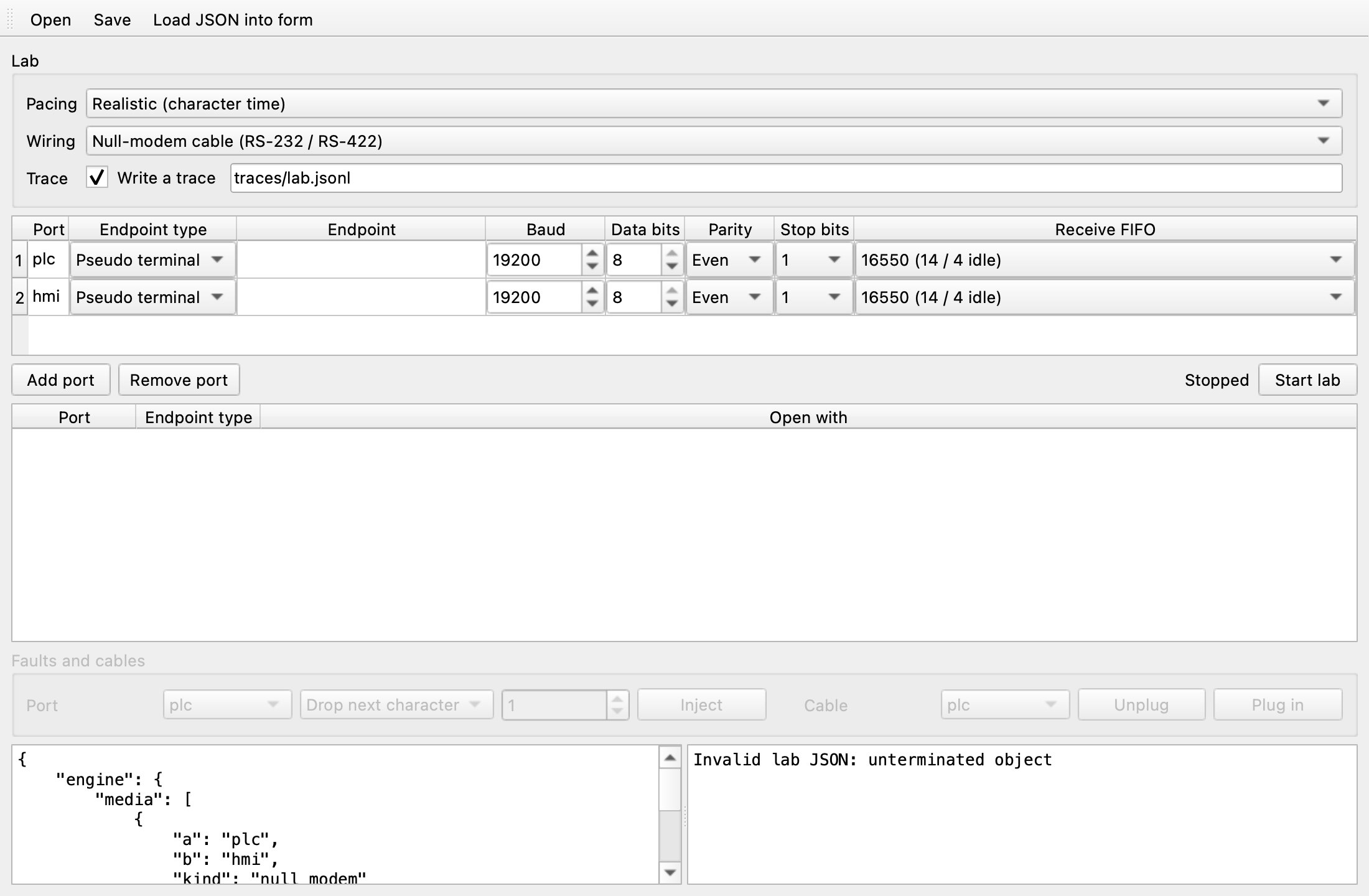
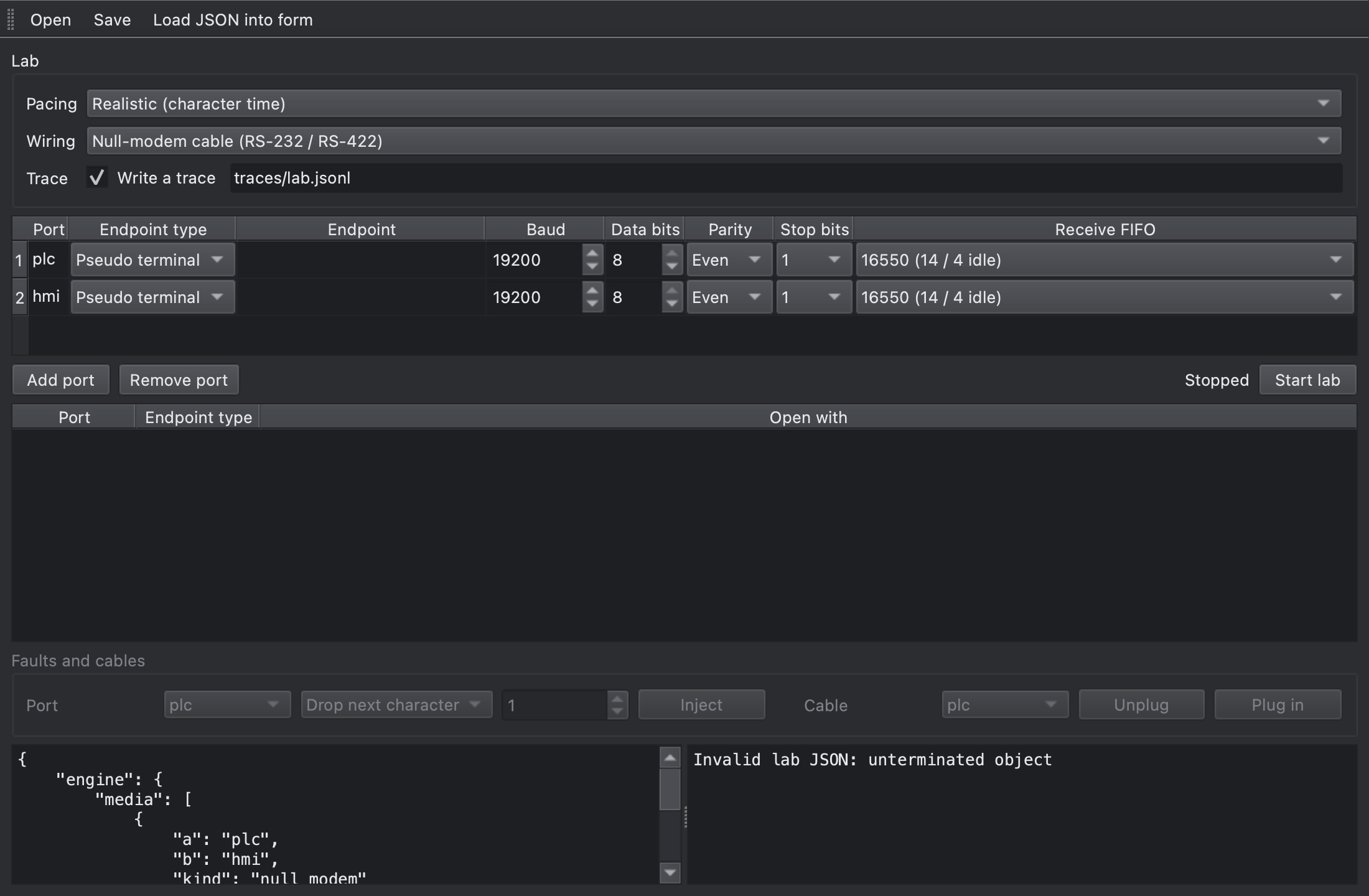
If the syntax is valid but the lab file isn’t, the state changes to Stopped with an error and the log shows pdcomm-vserial: <cause>. For causes and fixes, see Lab file errors.